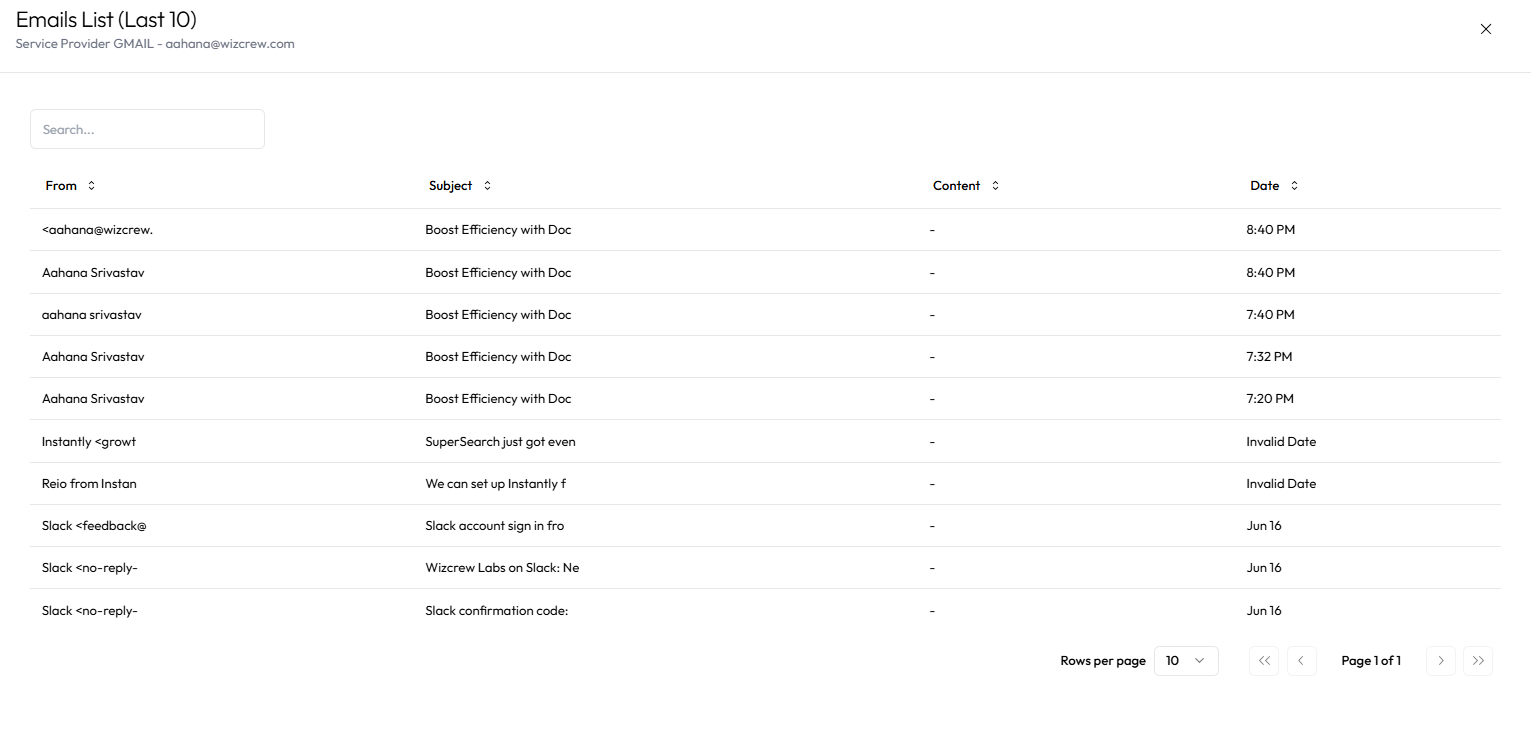
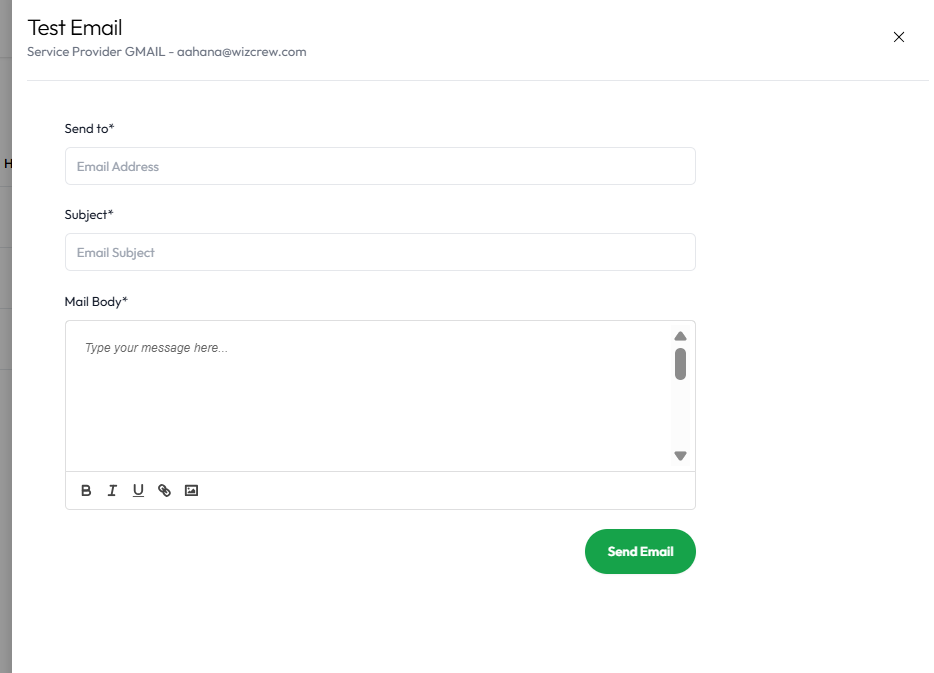
Accounts page

Purpose
This flow allows users to connect or purchase sending email accounts for use in cold outreach. It supports Gmail, Outlook, and custom IMAP/SMTP providers. Once connected, all accounts appear in a centralized list with metadata and action options.
1. Navigation Entry Point
-
User logs in and clicks on the "Accounts" tab from the sidebar.
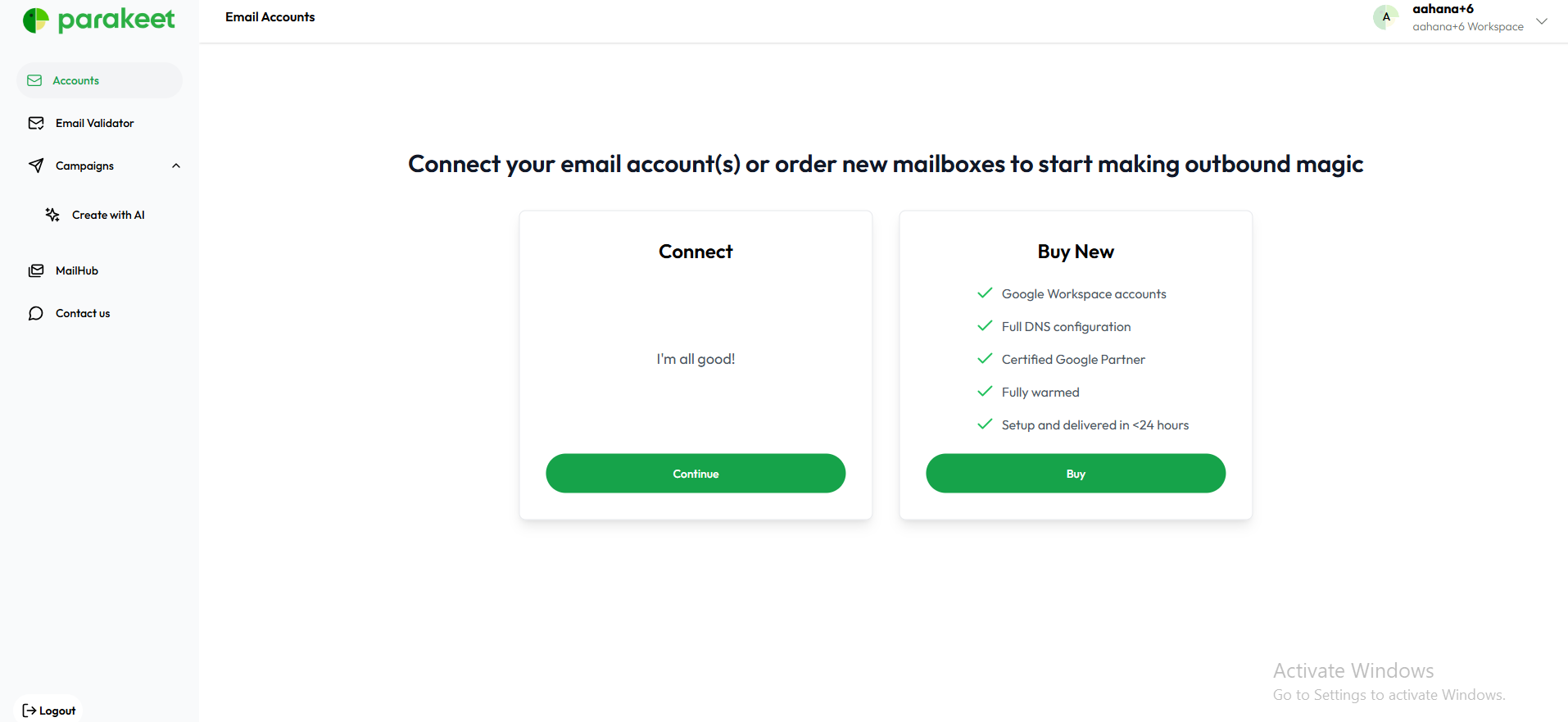
2. Email Connection Options
Upon accessing the page, users see options to add a new email account using one of three methods:
Option 1: Connect Existing Email
User clicks "Connect Email", then selects one of the following providers:
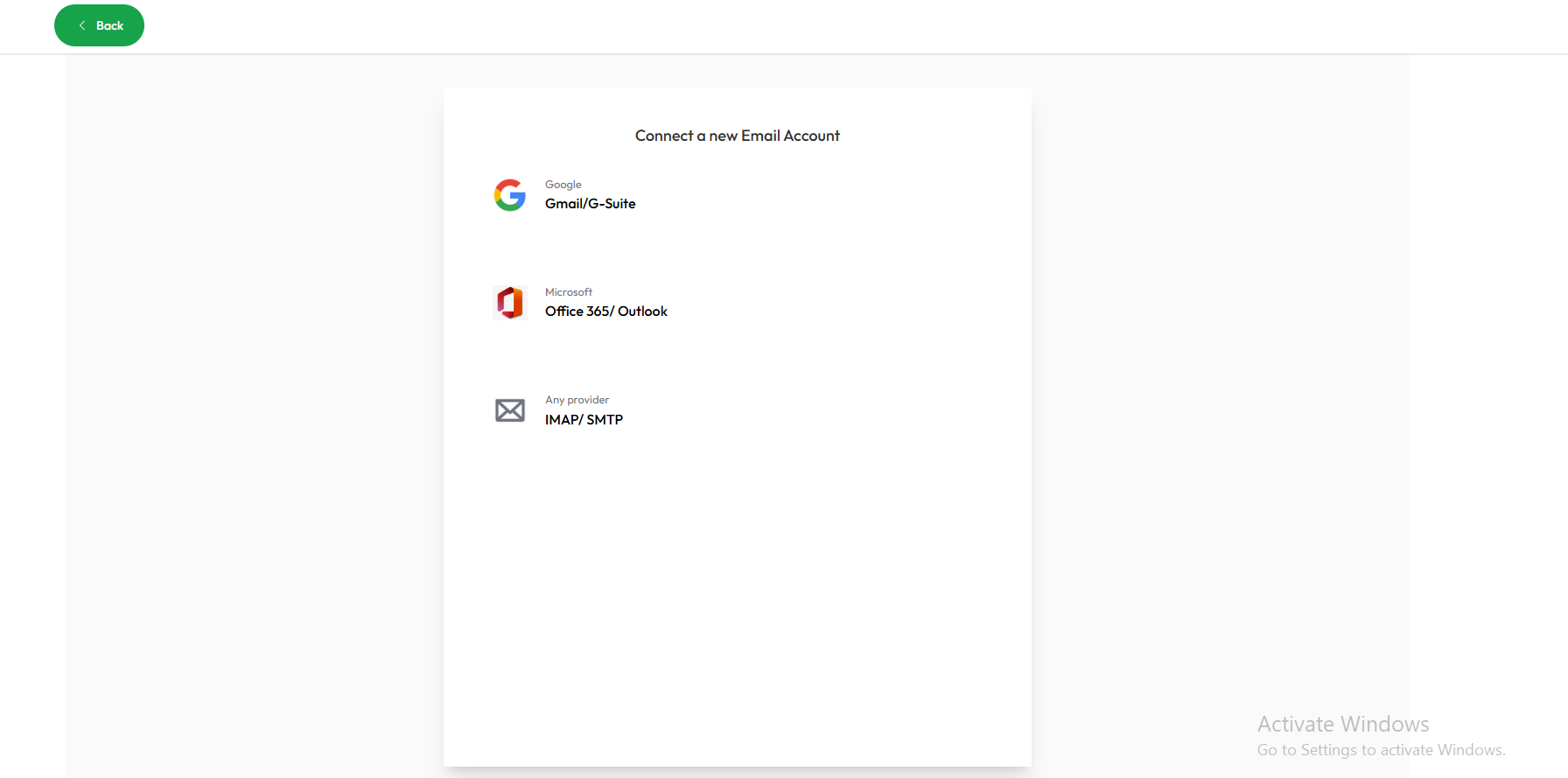
➤ Google (Gmail)
-
Opens a Google OAuth pop-up:
“Connect your Gmail account” -
User signs in via Google login.
-
Permissions are granted through the standard Google OAuth flow.

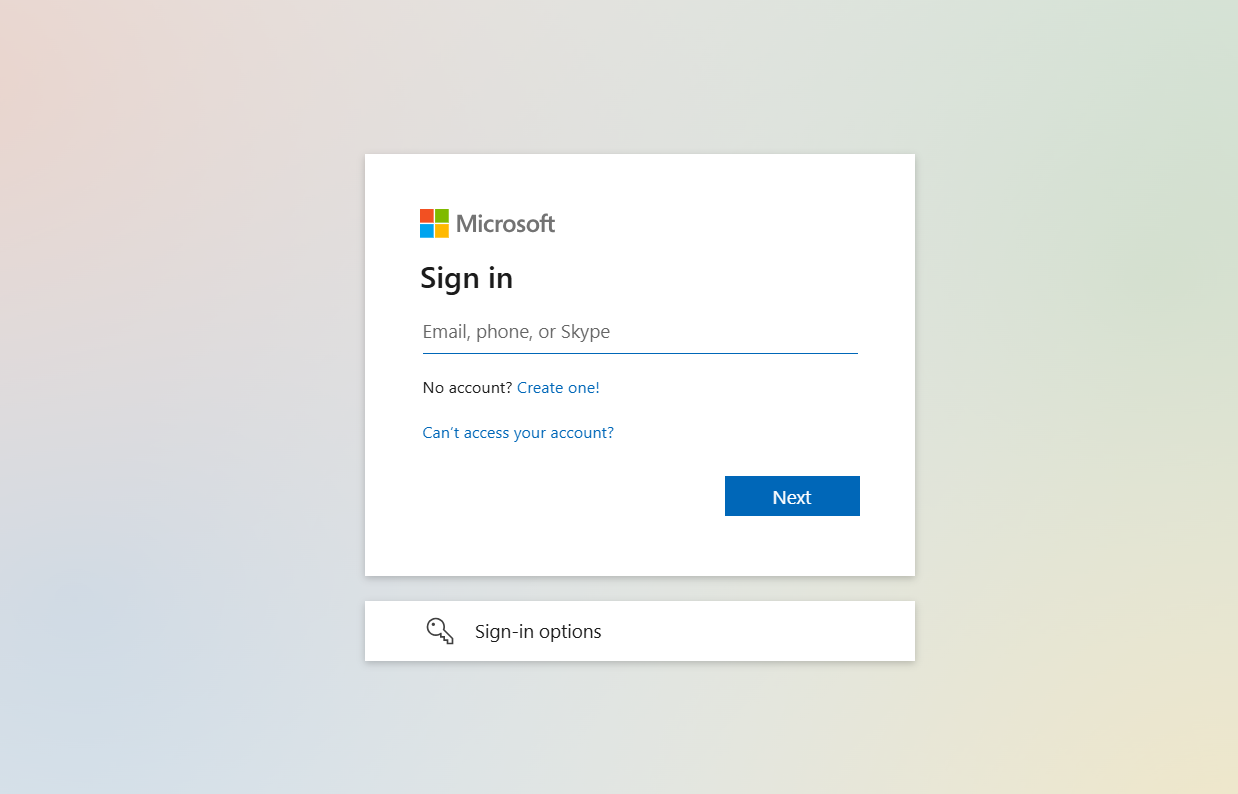
➤ Outlook (Microsoft 365)
-
Redirects user to
https://login.microsoftonline.com -
User logs in with Microsoft credentials.
-
OAuth-based access approval is completed.
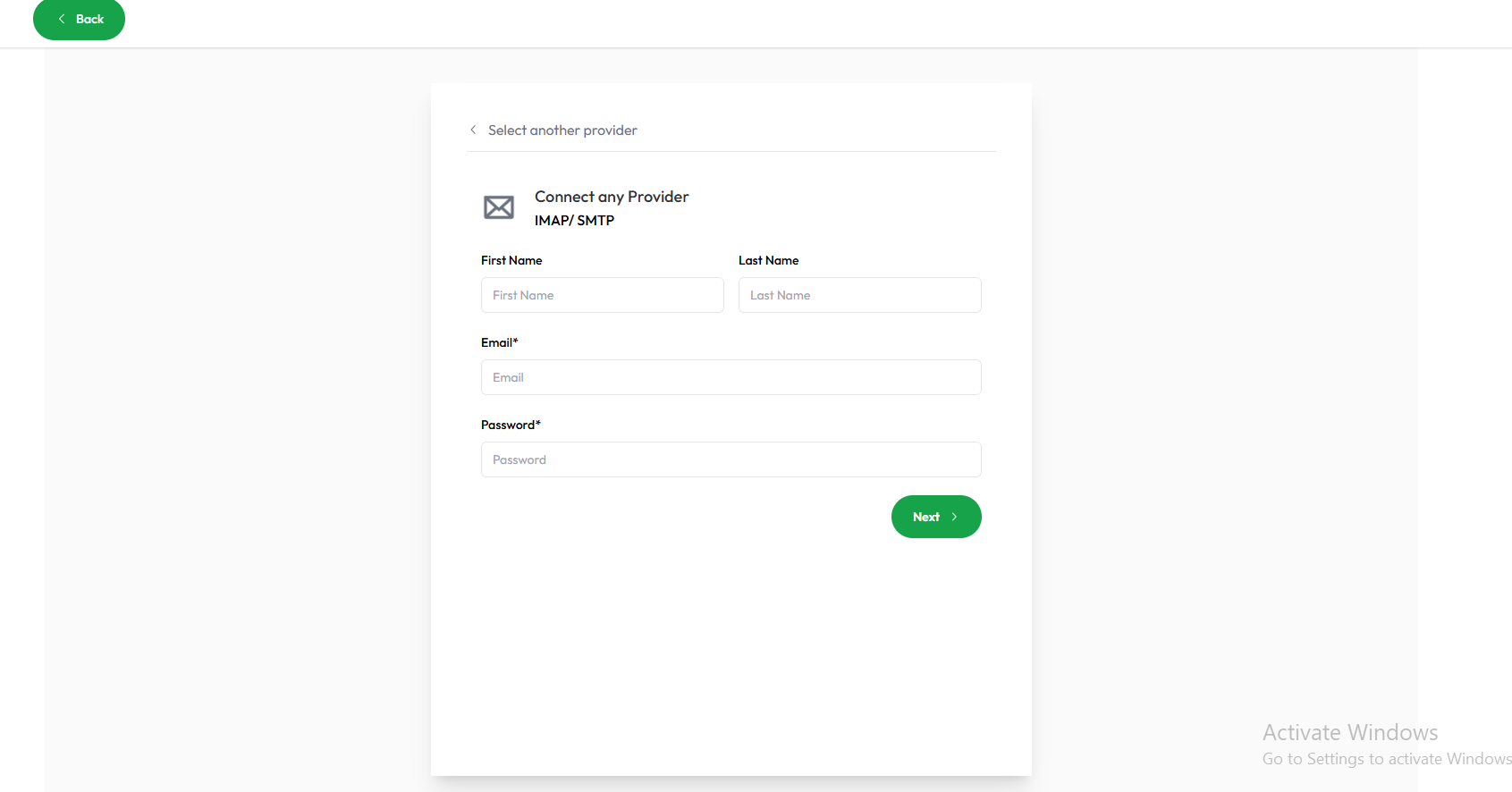
➤ Custom Provider (IMAP + SMTP)
User is prompted to manually enter the following:
-
Email address
-
Provider name
-
Incoming mail (IMAP) server
-
Outgoing mail (SMTP) server
-
Ports and encryption type (SSL/TLS)
-
Credentials (Username and Password, if applicable)
Option 2: Buy New Email
Users may choose to purchase a new mailbox from within the platform. This typically includes:
-
Automated domain setup
-
SMTP configuration handled internally
[insert the link to buy doimans flow]
3. Post-Connection: Email Appears in List
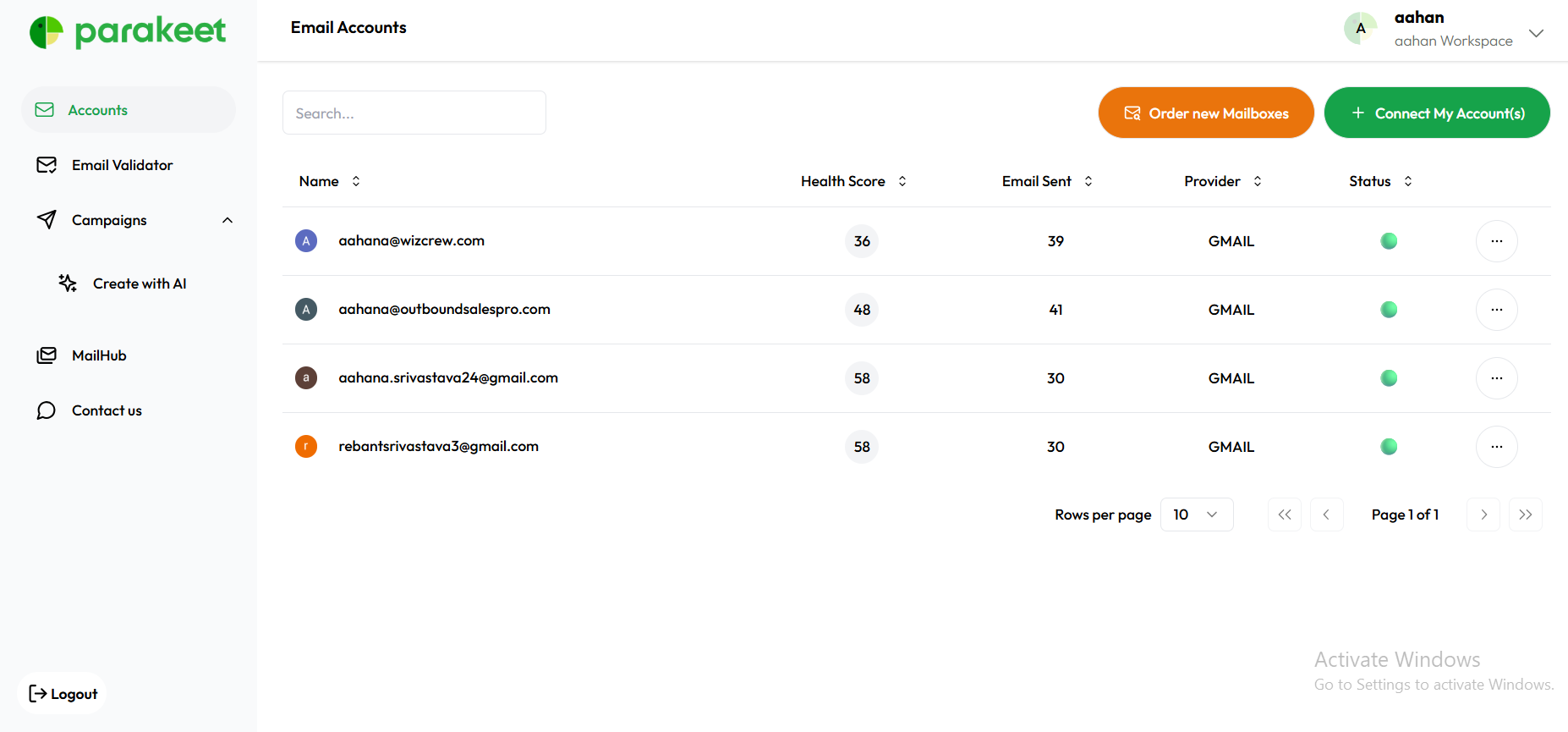
After successful connection or purchase, the new email is added to the Accounts list.
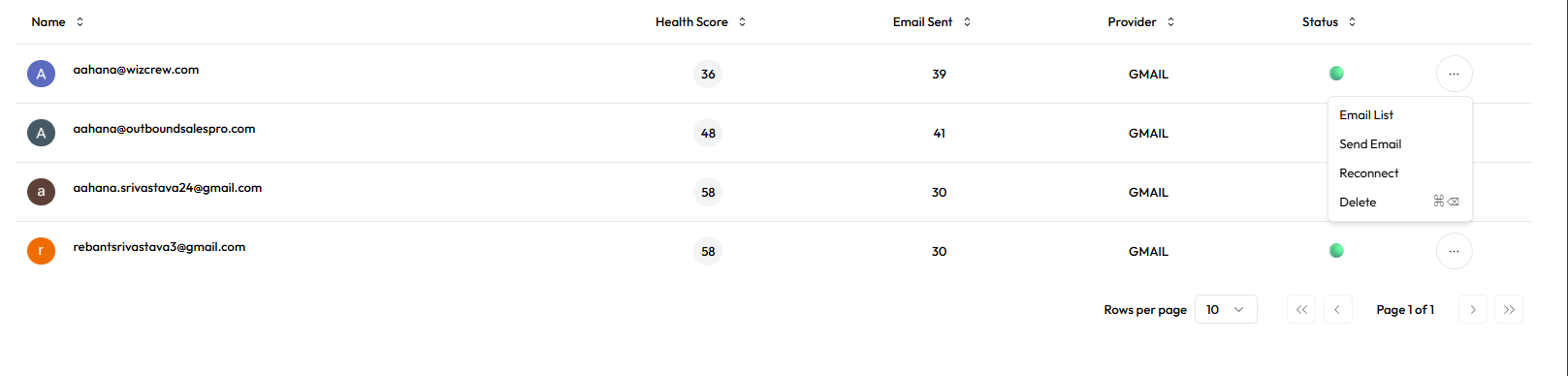
Each row in the list displays:
-
Email Address
-
Provider
-
Health Score
-
Total Emails Sent
-
Status (Connected / Not Connected)
-
Action Menu (3 Dots)
4. Health and Status Indicators
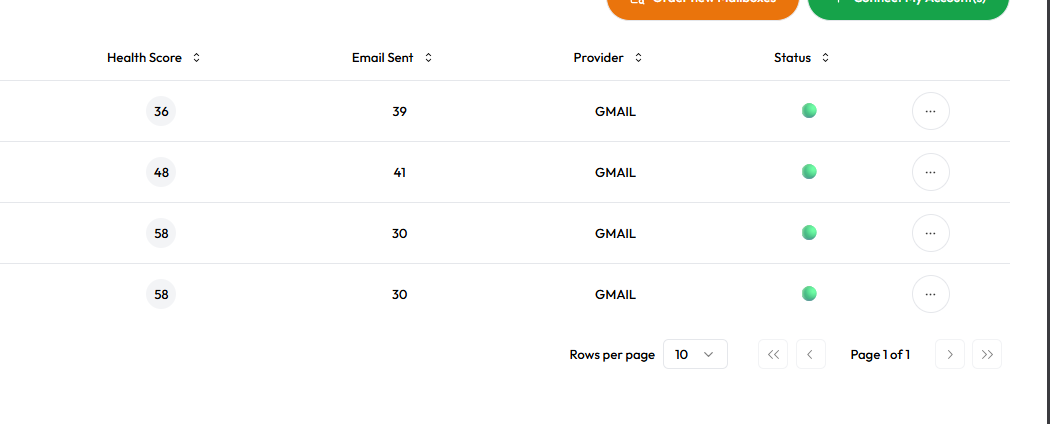
Each connected email shows:
-
Health Score (numerical or colored scale)
-
Status: e.g., "Connected", "Disconnected", or "Reconnect Required"
-
Provider: Google, Outlook, or Custom
-
Emails Sent: Total number of emails sent using that address
Email Health Score & Deliverability Dashboard
Once an email is connected, it’s displayed in the Accounts tab with additional metrics, including:
-
Email Address
-
Provider
-
Health Score (0–100)
-
Total Emails Sent
-
Status (Connected / Needs Reconnect)
-
3-dot menu (actions)
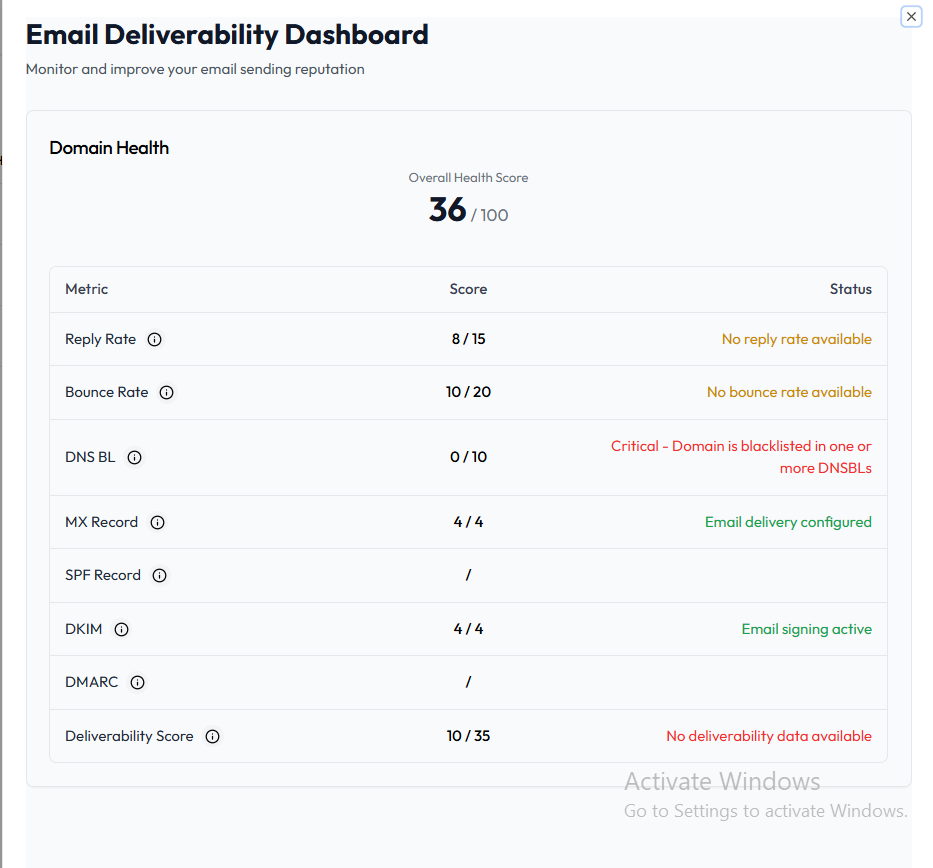
Clicking on the Health Score opens the Email Deliverability Dashboard, which evaluates the domain’s ability to successfully deliver emails based on the following metrics:
| Metric | Score Weight | Status Description |
|---|---|---|
| Reply Rate | 15 pts | % of recipients replying |
| Bounce Rate | 20 pts | % of emails that bounced |
| DNS BL | 10 pts | Whether domain is blacklisted |
| MX Record | 4 pts | Mail exchange record status |
| SPF Record | – | Authenticates sender IP |
| DKIM | 4 pts | Email signing active |
| DMARC | – | Alignment & policy check |
| Deliverability Score | 35 pts | Combined score summary |
Each row is color-coded:
-
✅ Green: Active/Valid
-
⚠️ Yellow: Missing or incomplete
-
❌ Red: Critical (e.g., blacklisted)\
5. Actions Menu (⋮)
Clicking the three-dot menu on each email opens four options:
-
Email List – View campaigns or mail associated with the account

-
Send Email – Opens sidebar form with:
-
To
-
Subject
-
Email Body

-
-
Reconnect – Re-runs the provider connection flow
-
Delete – Permanently removes the email from your account