Campaign Module ( inside a campaign)
Campaign Module – Full Detail View
Entry: Campaigns Tab → Click on Any Campaign
When a user clicks on an existing campaign, the system routes them based on the campaign type:
| Campaign Type | Redirects To |
|---|---|
| AI Campaign | Campaign Tab |
| Manual Campaign |
Leads Tab |
Once inside a campaign, users are presented with a structured interface that includes several functional tabs. These tabs form the control center for managing the lifecycle of a cold email campaign from creation to tracking outcomes.
Campaign Dashboard – Tab Overview
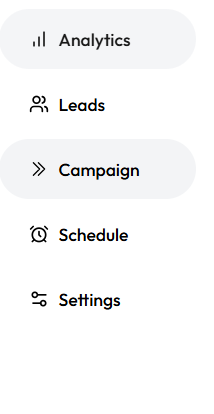
Each campaign consists of the following five core tabs:
| Tab Name | Purpose |
| Analytics | Visualizes campaign performance and response metrics |
| Leads | Interface to upload, manage, and monitor lead recipients |
| Campaign | The main editor for configuring email steps and sequences |
| Schedule | Controls campaign launch timing, time zone, and delivery schedule |
| Settings | Technical and safety configurations like bounce rules, sender logic |
Campaign Tab – Email Sequence Builder
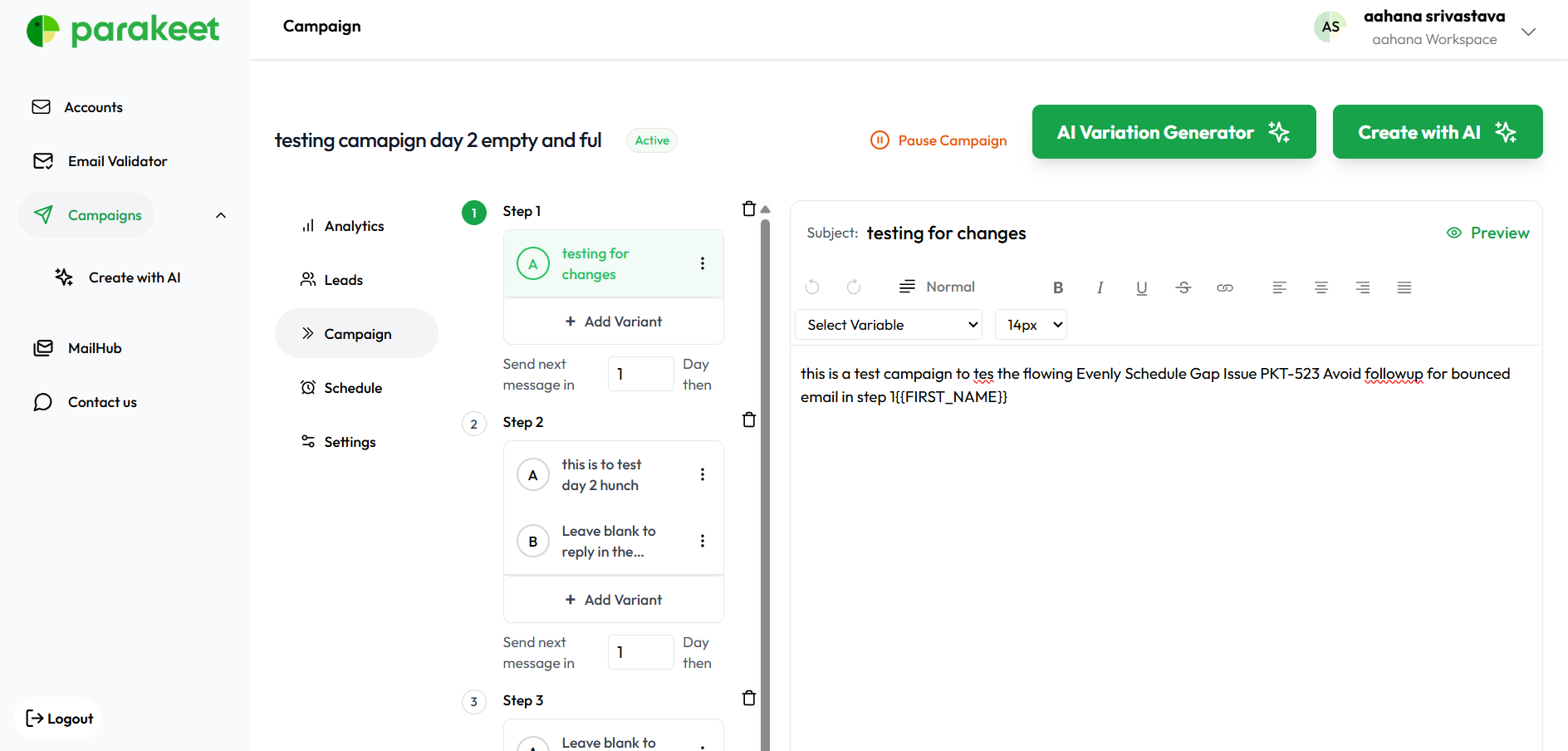
This is the centerpiece for campaign setup. It allows:
-
Adding unlimited steps in the email sequence.
-
Each step has configurable delays (e.g., "Send Step 2 after 3 days").
-
Drafting subject lines and content for each step.
-
Option to personalize with variables (e.g., {{first_name}}, {{company}}).
-
Rich text editor for formatting.
AI Variation Generator
An optional tool available inside the Campaign tab that enhances email copy using AI.
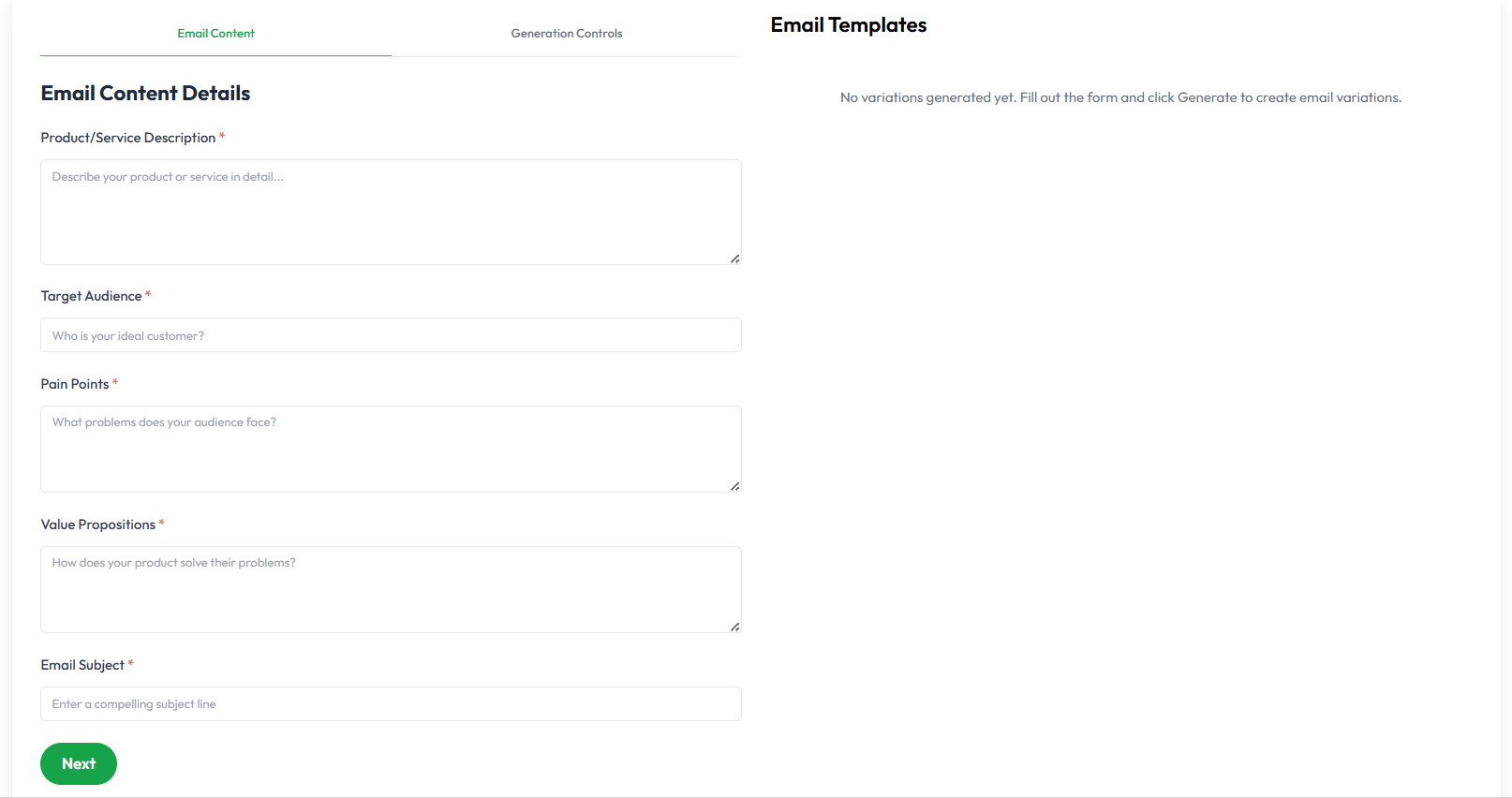
Step 1: Input Requirements
-
Product or service description
-
Target audience details
-
Pain points being addressed
-
Value proposition
-
Email subject line
Step 2: Control Sliders
-
Creativity: Conservative to Creative
-
Urgency: Relaxed to Urgent
-
Tone: Formal to Casual
-
Style: Professional to Conversational
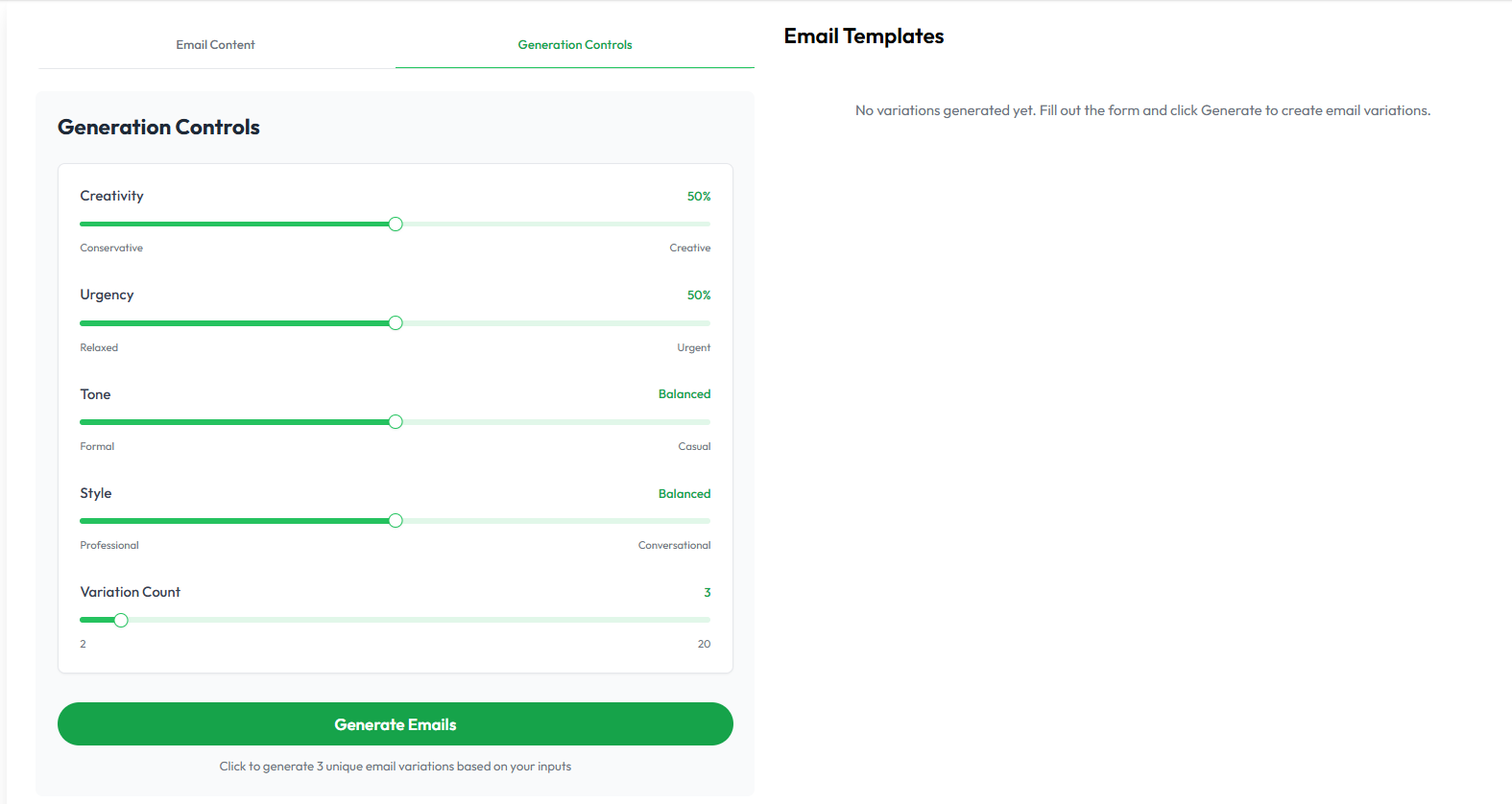
AI will return multiple copy variations that the user can preview, edit, and insert.
Leads Tab – Uploading and Managing Recipients
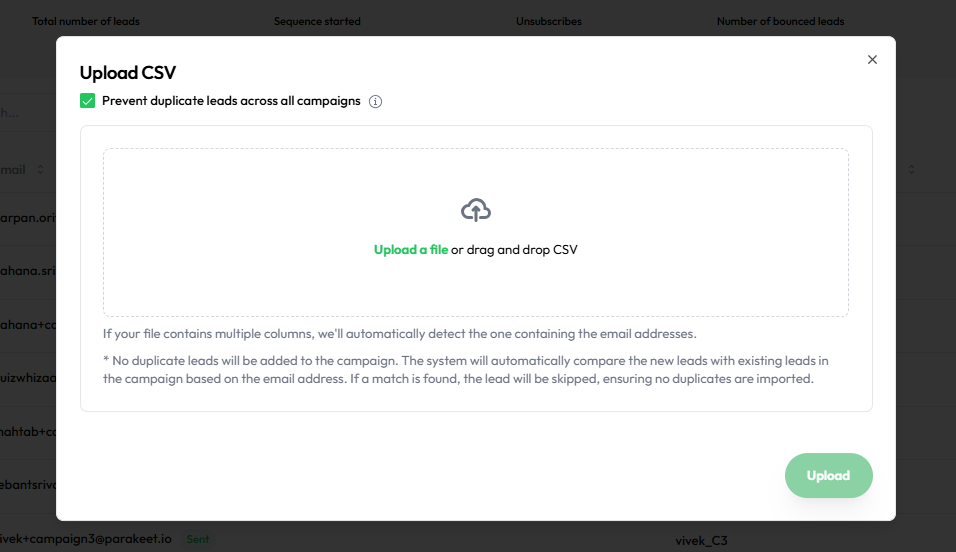
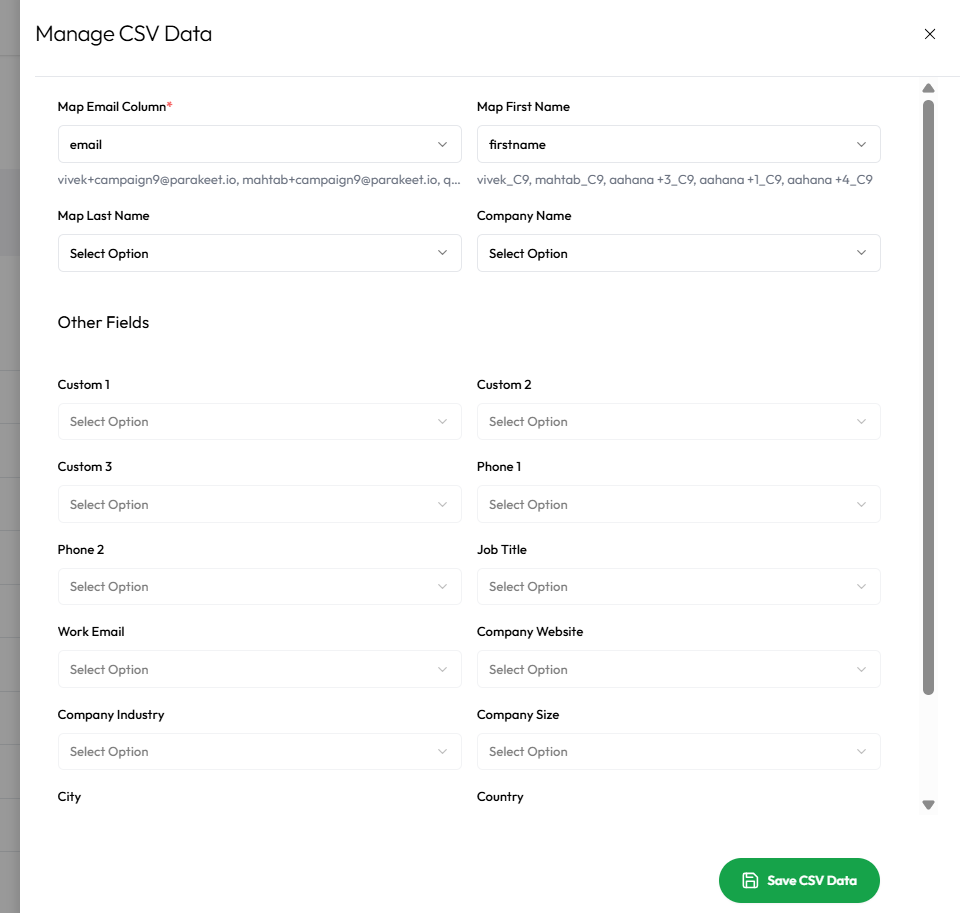
The Leads tab is used to define the recipients for your campaign.
-
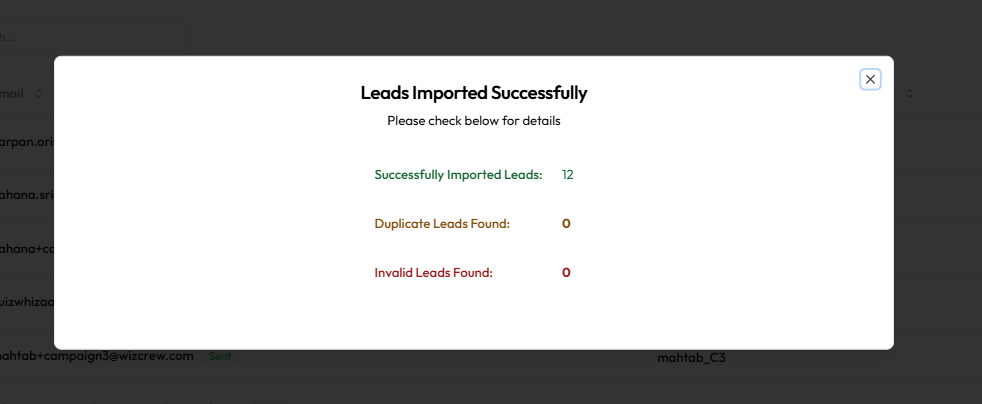
Upload a list of email leads using a CSV file.
-
Drag & drop file support included.
Lead Duplication Control
-
Checkbox:
Prevent duplicate leads across all campaigns -
When checked, the system checks for any existing lead email across all other campaigns.
-
Duplicate leads will be skipped during upload.
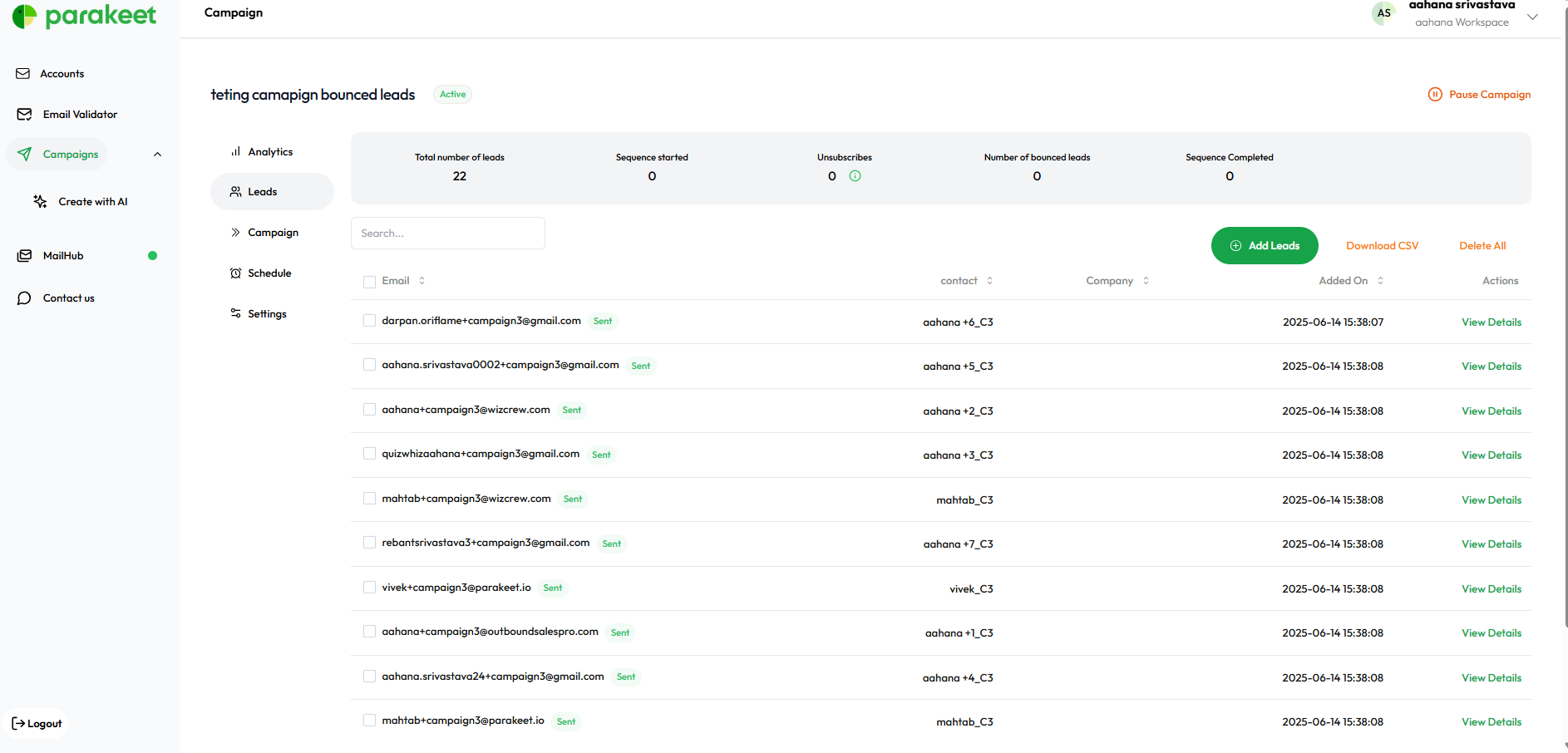
Lead Metrics Displayed
-
Total leads uploaded
-
Sequence started
-
Unsubscribed
-
Bounced
-
Sequence completed
Lead Management
-
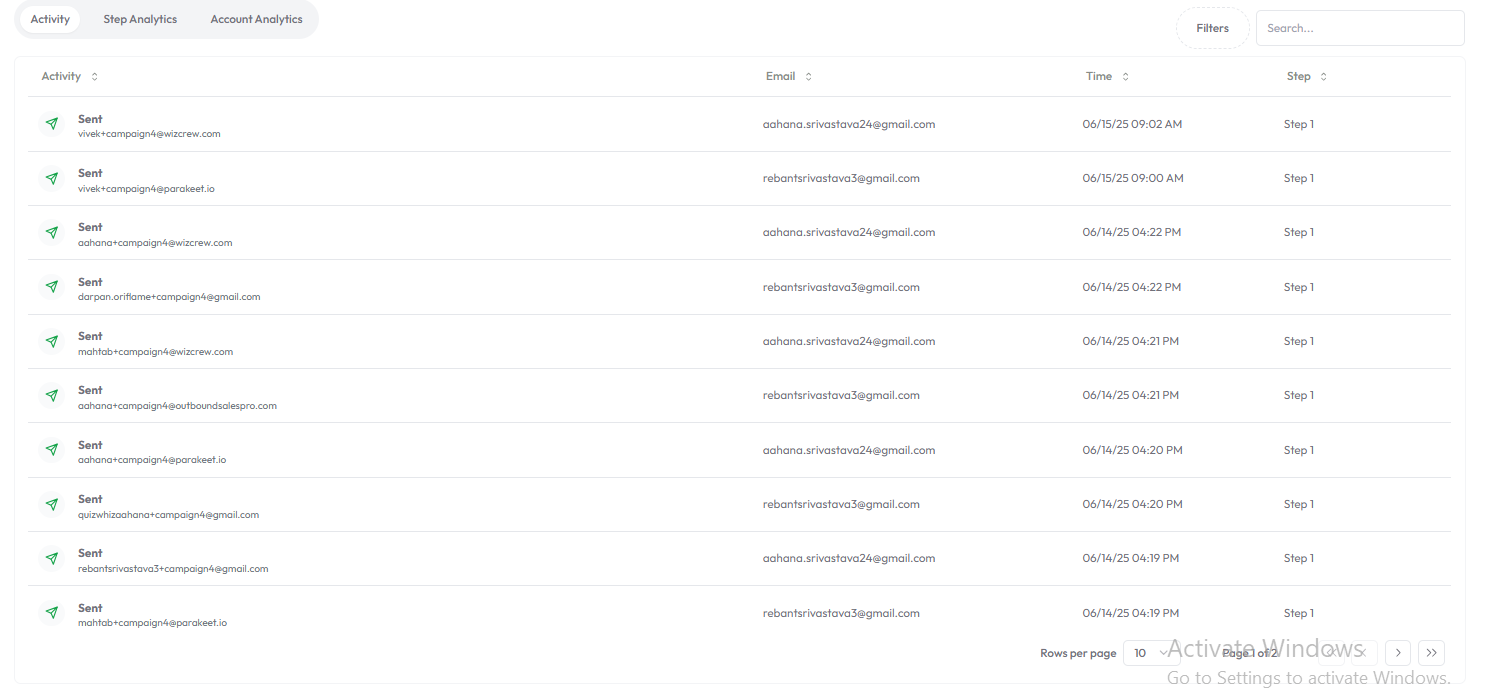
View and manage uploaded leads
-
Search, sort, and filter leads
-
View delivery status for each contact
Schedule Tab – Timing & Delivery
Defines when and how emails are sent.
-
Campaign Start Date: Set a delay to launch later.
-
Time zone: Default is
America/New York (EDT), but can be changed. -
Sending Days: Choose which weekdays to send emails (default: Mon–Fri).
-
Sending Hours: Default window is 9 AM–5 PM. Fully customizable.
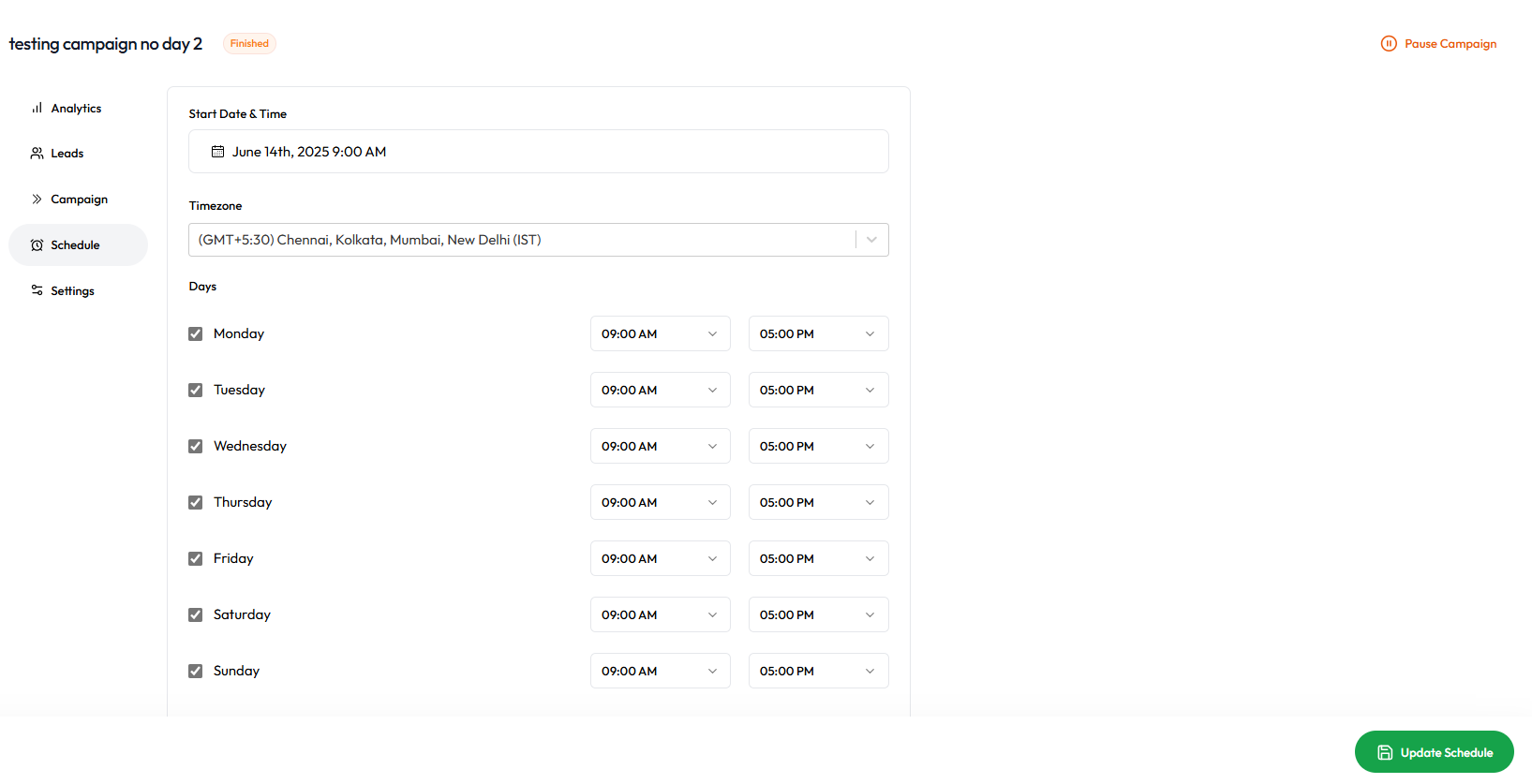
Emails will only be sent within the defined hours on active days.
Analytics Tab – Performance Metrics
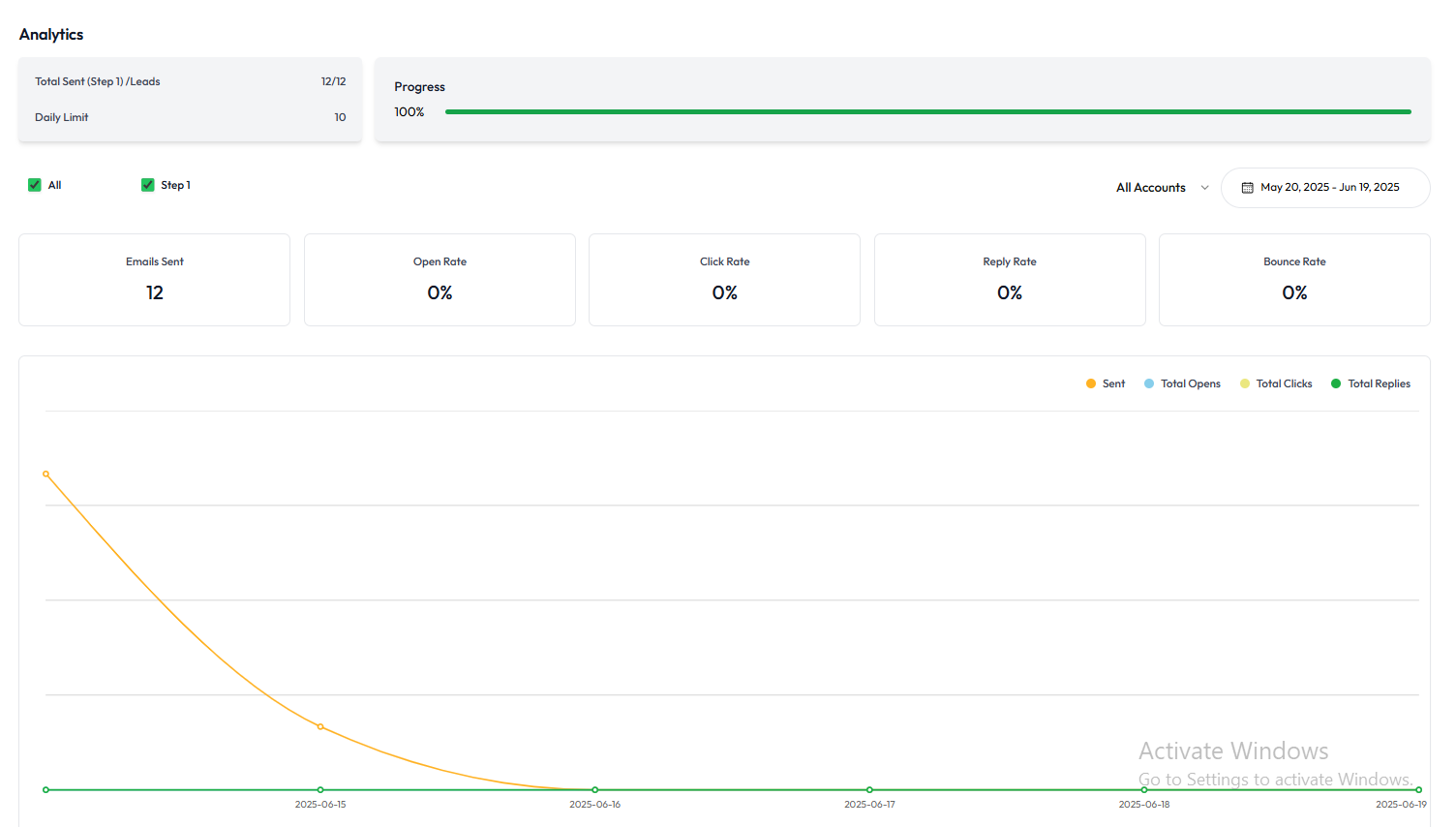
Gives a detailed view of how the campaign is performing.
-
Open Rate: Percentage of recipients who opened the email.
-
Click Rate: Percentage of recipients who clicked a link.
-
Reply Rate: Percentage of replies received.
-
Bounce Rate: Emails that were undeliverable.
-
Unsubscribed: Number of users who opted out.
Graphs, bar charts, and tables are used to visualize trends.
Settings Tab – Technical Controls
This section manages all advanced configurations for a campaign.
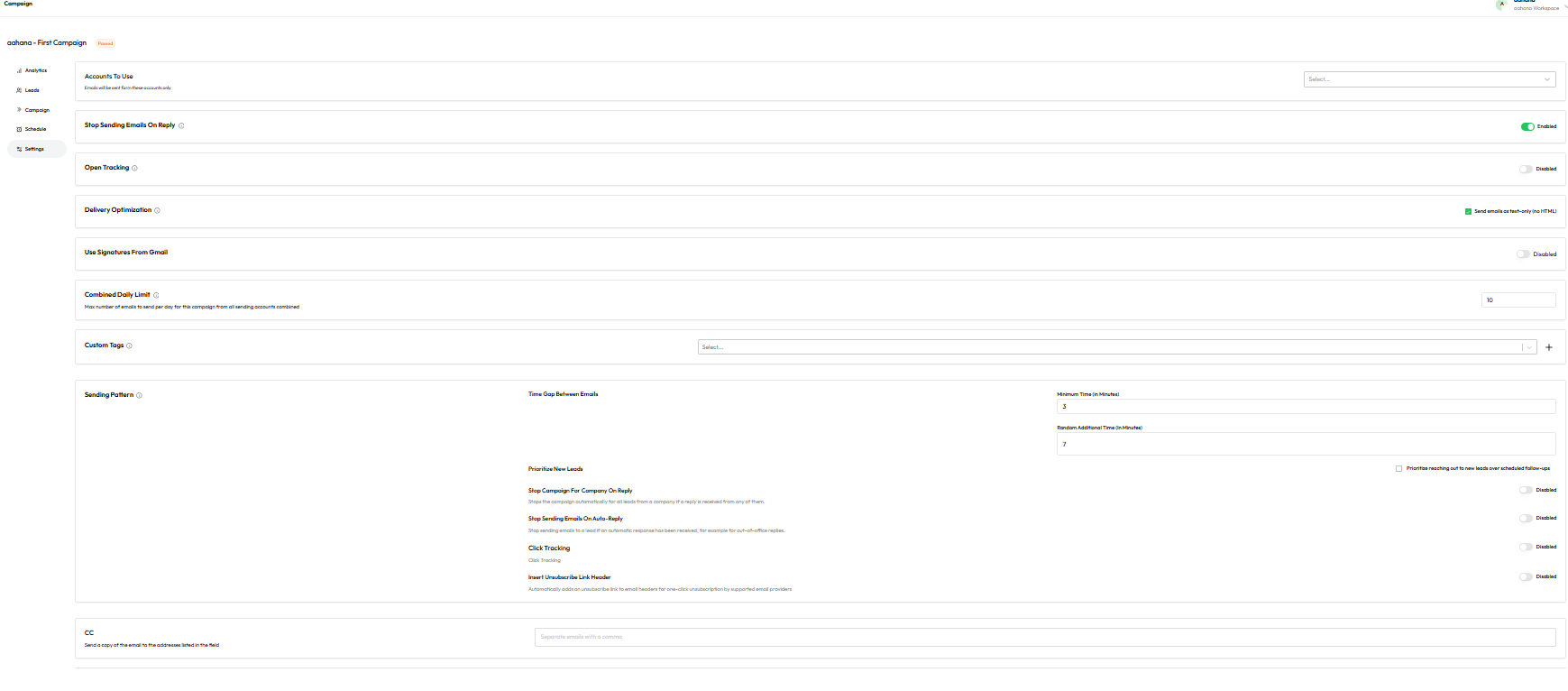
Accounts To Use
-
Select one or more connected email addresses to send emails from.
Stop Sending Emails On Reply
-
When enabled, stops all future steps if a reply is received from the lead.
Open Tracking
-
Track whether recipients opened the email.
Delivery Optimization
-
Choose to send emails in text-only format (HTML fallback).
Use Signatures From Gmail
-
When enabled, uses the sender’s Gmail signature if connected via Google OAuth.
Combined Daily Limit
-
Maximum number of emails sent per day across all selected sending accounts.
Custom Tags
-
Tag the campaign with custom labels for internal filtering and reporting.
Sending Pattern
-
Time Gap Between Emails:
-
Minimum Time (in minutes)
-
Random Additional Time (in minutes)
-
-
Optional Features:
-
Prioritize new leads over follow-ups
-
Stop campaign for a company on reply
-
Stop sending on auto-reply
-
Click tracking
-
Insert unsubscribe link header
-
CC
-
Add CC addresses (comma-separated) for receiving a copy of each campaign email.
Routing Logic Summary
| Action | User Lands On |
| Click on AI-generated campaign | Campaign tab |
| Click on manually created campaign | Leads tab |
| View existing campaigns | Campaign summary dashboard |
| Create new campaign (manual) | Starts from campaign naming → Leads tab |
| Create new AI campaign | Follows website → ICP → campaign builder flow |