
Campaign page (overview)
Campaigns Module – Overview Page
This is the default landing page when a user clicks the Campaigns tab from the sidebar.
Entry Behavior
-
No Campaigns Present
If no campaigns have been created yet, the interface displays an empty state with the message:No campaigns available yet. Start by creating one.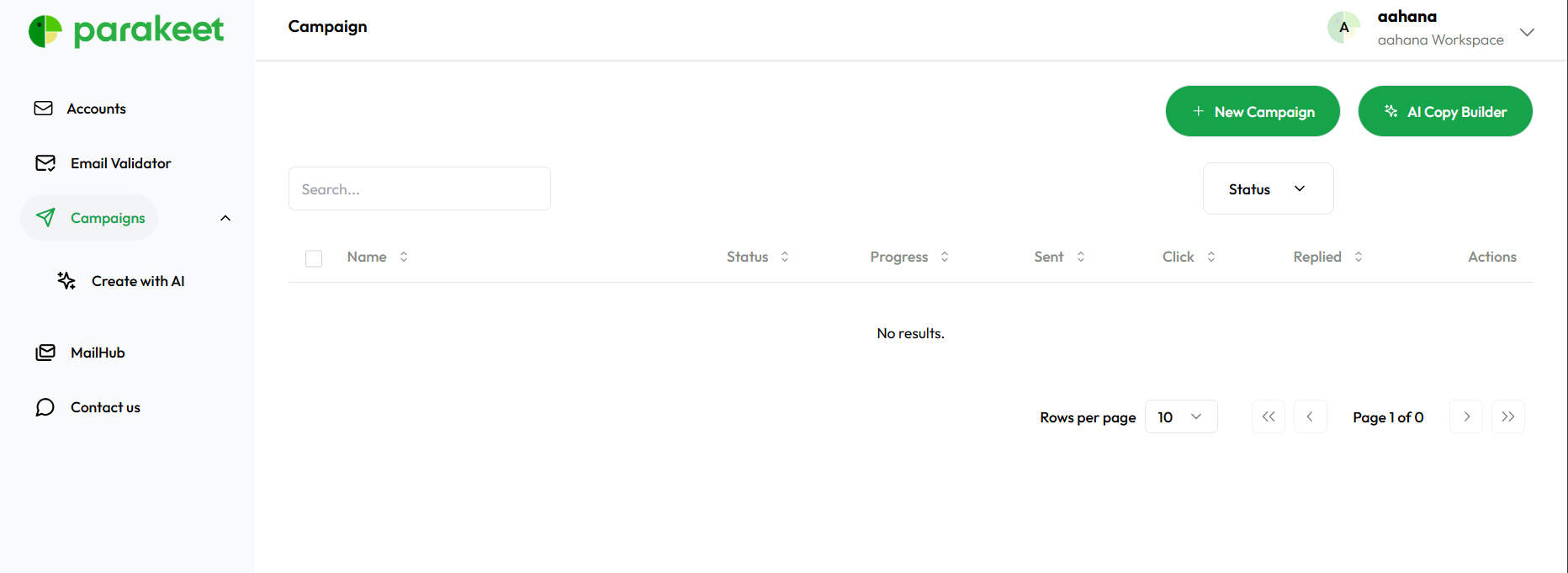
-
One or More Campaigns Present
The dashboard displays a list of all campaigns (AI-generated or manually created) associated with the workspace. Campaigns are listed in chronological order and include essential metrics and controls.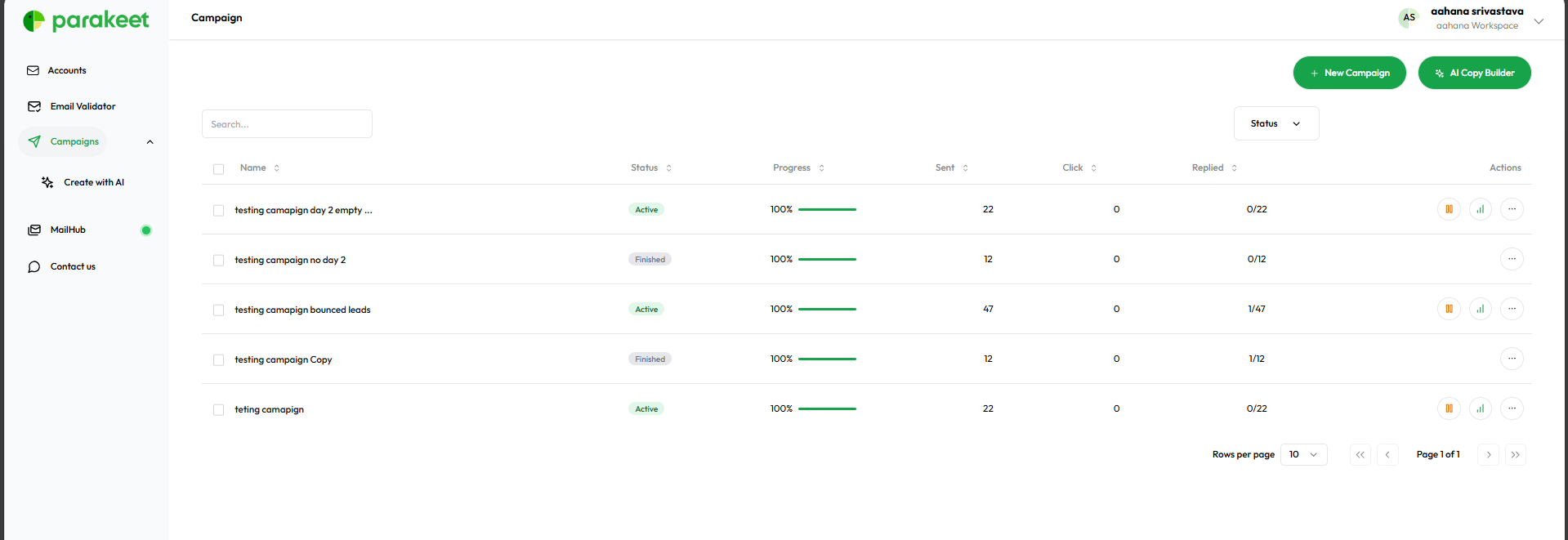


Primary Actions Available
Users can perform the following top-level actions from the Campaigns overview:
-
New Campaign
Initiates the manual campaign creation process. -
AI Campaign Builder
Launches the AI-powered campaign creation flow using website input and ICP analysis.
Campaign Table – Data Columns
Each campaign listed includes the following columns:
| Column Name | Description |
|---|---|
| Campaign Name | User-defined name of the campaign. |
| Status | Indicates state: Active, Paused, Completed. |
| Progress | Visual indicator or numeric progress based on email sequence activity. |
| Emails Sent | Total number of emails sent for this campaign. |
| Clicks | Number of users who clicked a link in the campaign emails. |
| Replies | Number of replies received, shown as: X replies of Y sent. |
| Actions | Start, Stop, or Pause the campaign. |
| Analytics Button | Opens the Analytics tab for this specific campaign. |
| ⋯ Menu (More) | Dropdown menu offering: |
| - Edit: Modify campaign structure | |
| - Duplicate: Clone the campaign | |
| - Delete: Permanently remove it |
No comments to display
No comments to display