
Email Validator
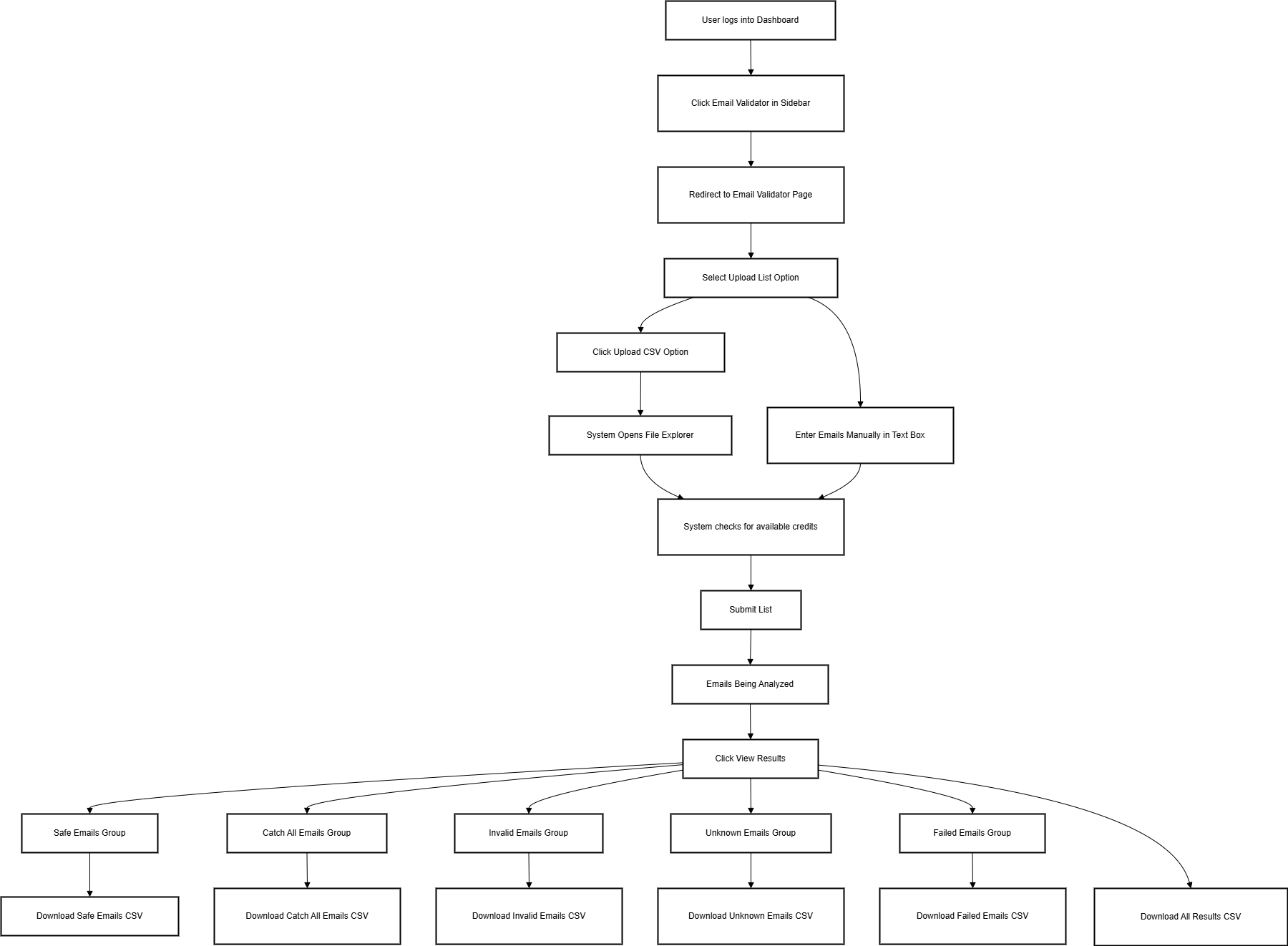
Flow Overview
This document outlines the complete user journey for interacting with the Email Validator feature in the Parakeet app, including:
-
Bulk email upload
-
Email validation
-
Viewing categorized results
-
Exporting results
Navigation Path
-
Login and Dashboard Access
-
User logs in and lands on a minimal dashboard.
-
Dashboard acts as a navigation hub.
[Insert Screenshot Here: Dashboard with Email Validator in left nav]
-
-
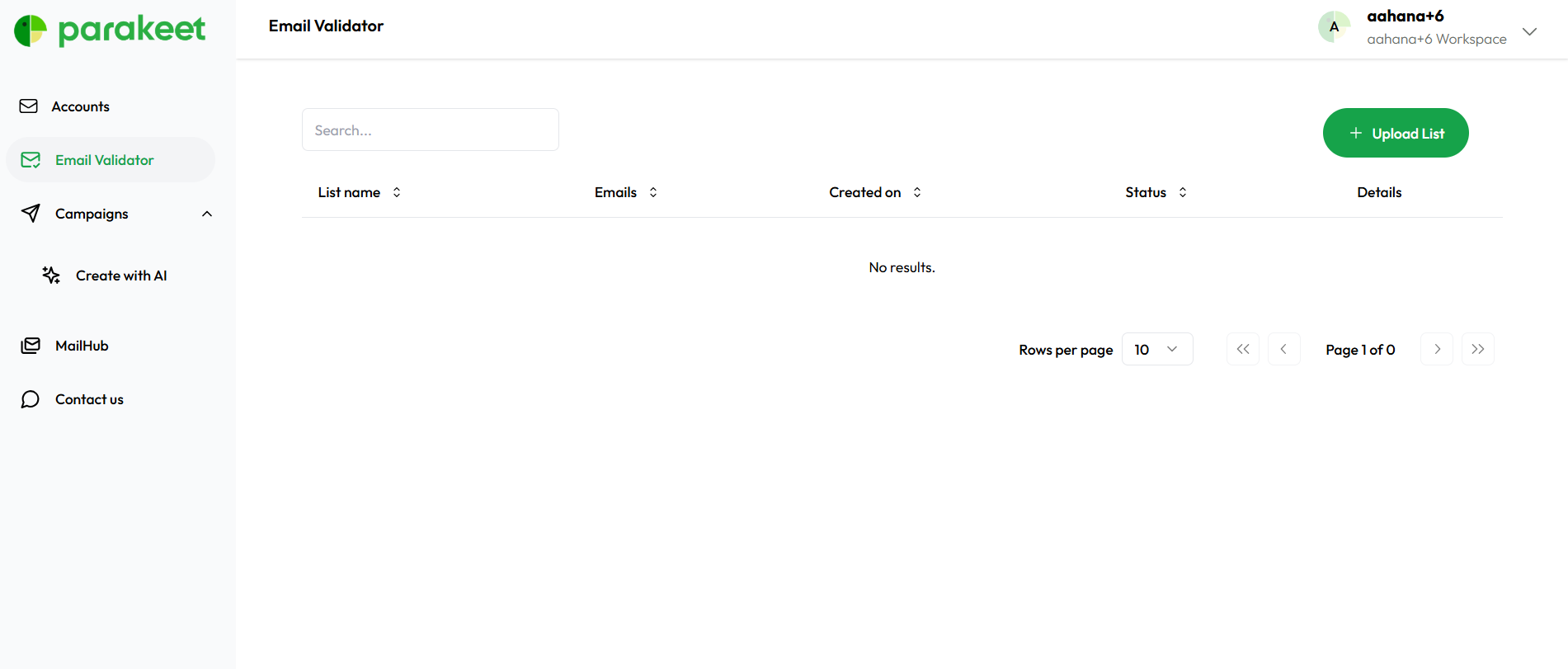
Open Email Validator
-
User clicks "Email Validator" in the left-hand menu.
-
Redirects to:
https://app.parakeet.io/email-validator
-
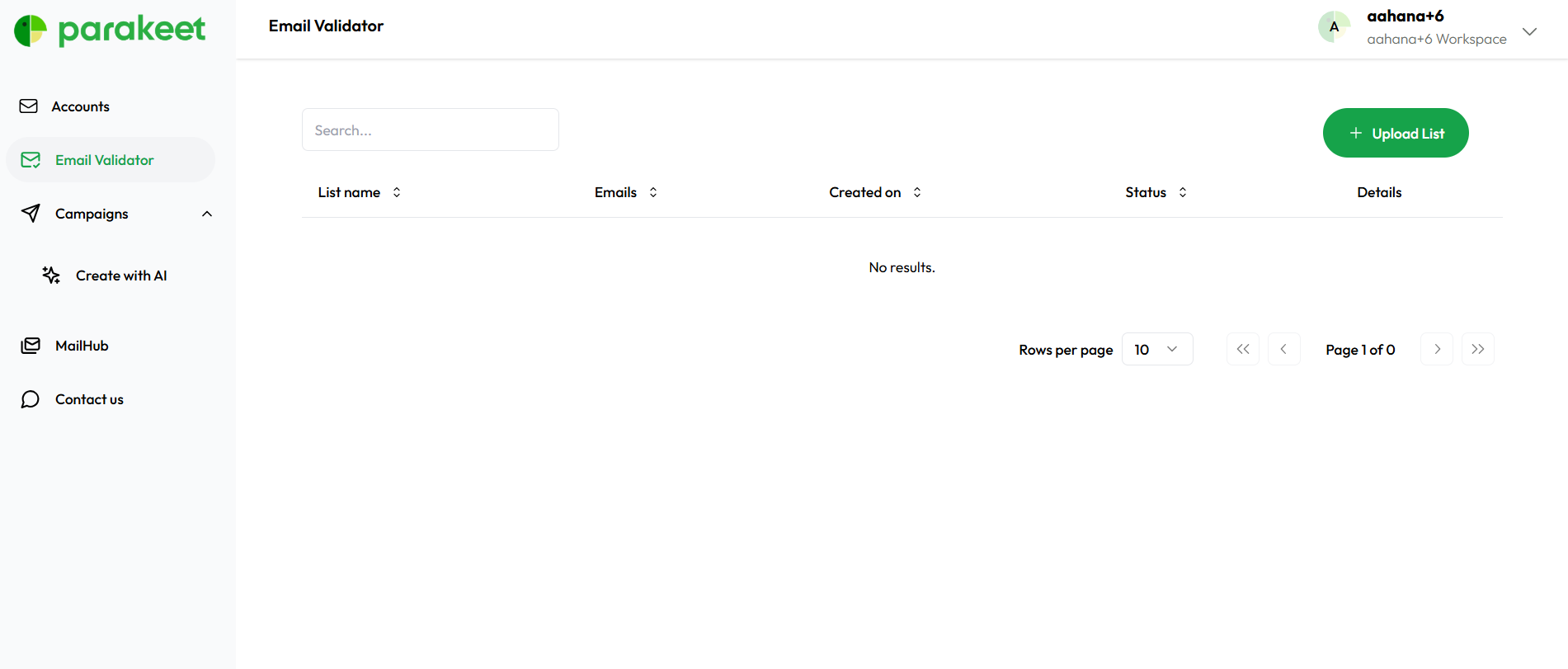
Email Validation – Two Modes
On the Email Validator page, users see two options:
-
Search
-
For single email validation.
- multiple Emails can be added but one in each line
-
-
Upload List (Primary Use Case)
-
For bulk validation via .csv upload or manual entry.
-
Upload List Flow
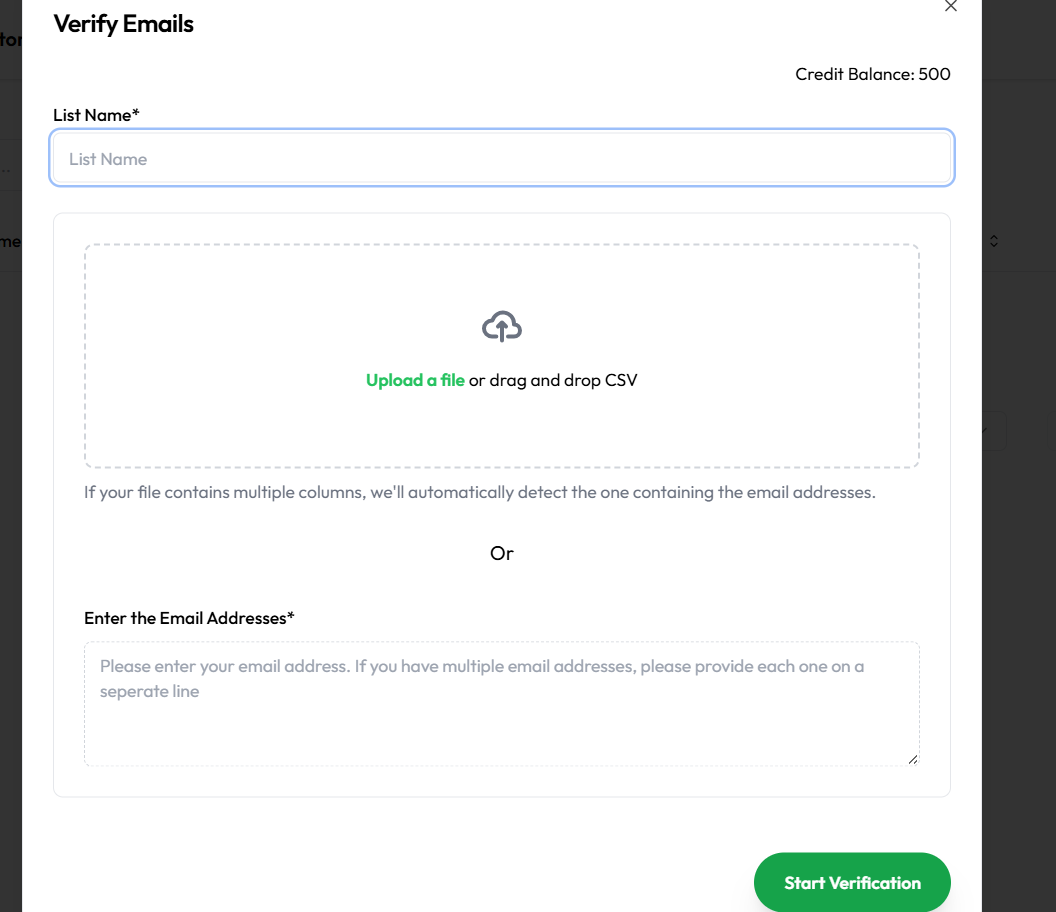
1. Input Requirements
-
User must enter a List Name (required field).
-
User can choose either:
-
Upload a
.csvfile with emails -
Manually paste emails into a textbox
-
2. Trade Balance Check
-
System checks available credits before submission (if credit system is enabled).
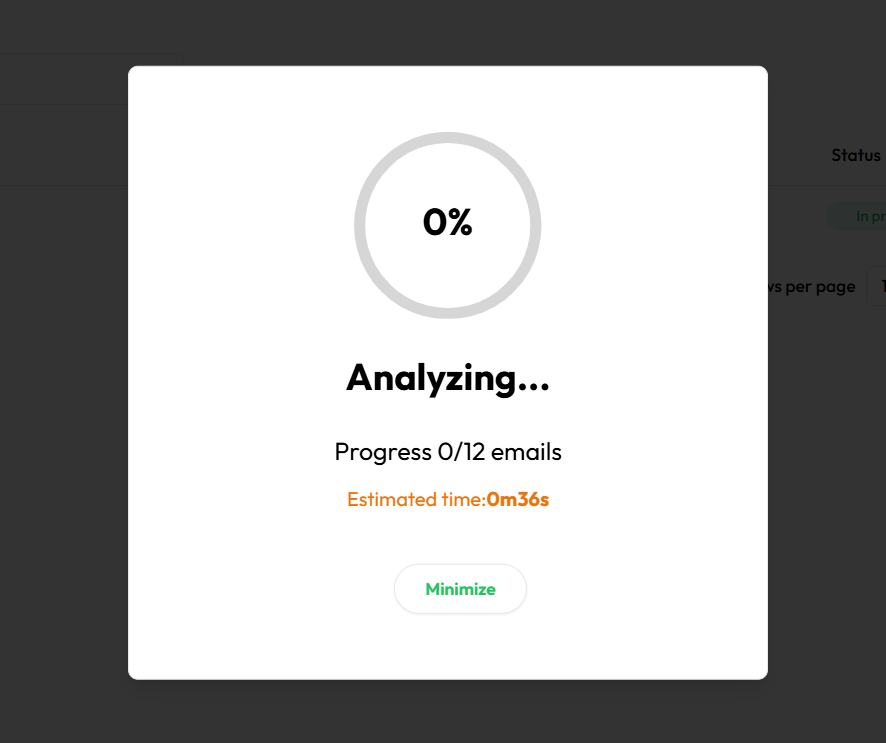
3. Analyzing Stage
-
After clicking submit, a popup displays progress:
Results and Email Status
1. Viewing Results
-
User clicks "View Results" after analysis completes.
-
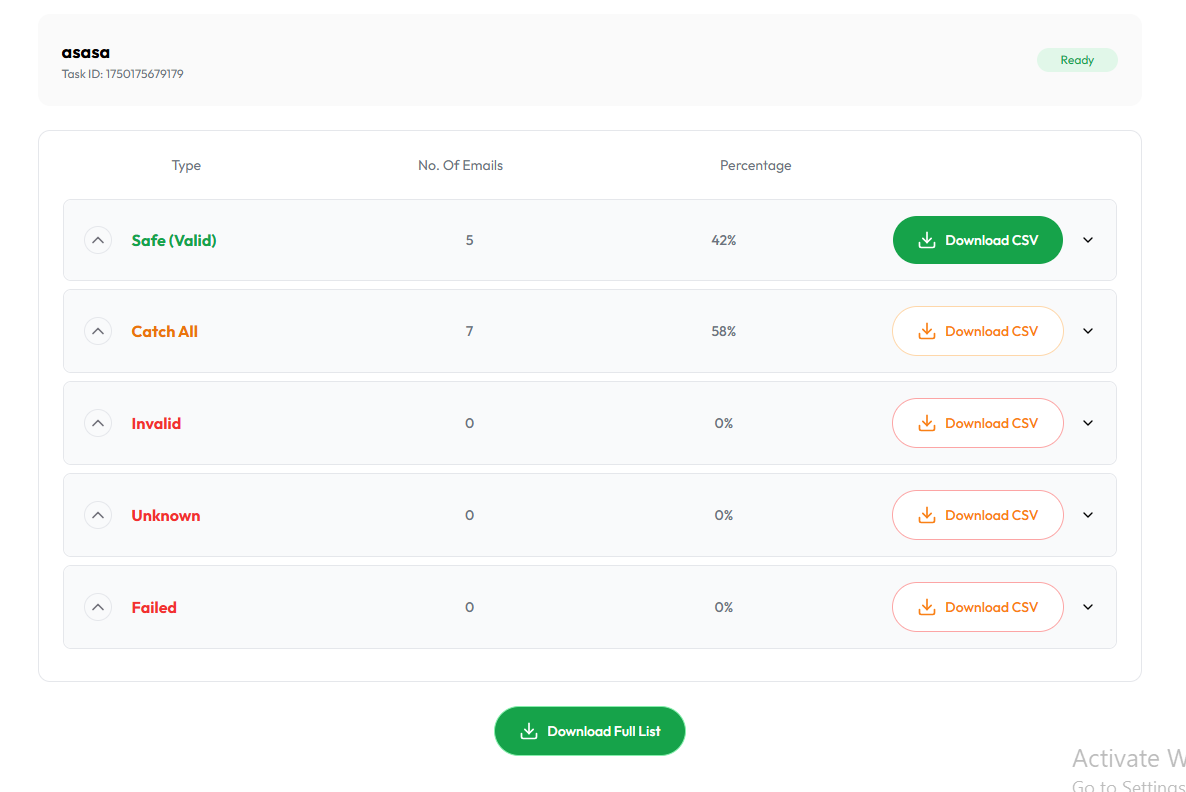
The page refreshes with categorized results.
2. Status Categories
Results are grouped into dropdowns:
-
✅ Safe – Valid and safe
-
⚠️ Catch All – Domain accepts all, unsure validity
-
❌ Invalid – Email is invalid
-
❓ Unknown – Could not verify
-
🚫 Failed – Technical failure
CSV Downloads
Users can export data via:
-
Single CSV – All results combined
-
Filtered CSV – Individual groups (e.g., only "Catch All")
No comments to display
No comments to display