
Forget Password Flow

Purpose
This flow enables users who have forgotten their credentials to securely reset their password and regain access to their account.
Flow Steps
-
The user clicks on the "Forgot Password" link on the login page.
-
The user is redirected to the Password Reset Request Page:
auth/forgot-password
-
The user is prompted to enter the email address associated with their account.
-
Upon entering a valid email address, the user clicks the "Send Password Reset Link" button.
-
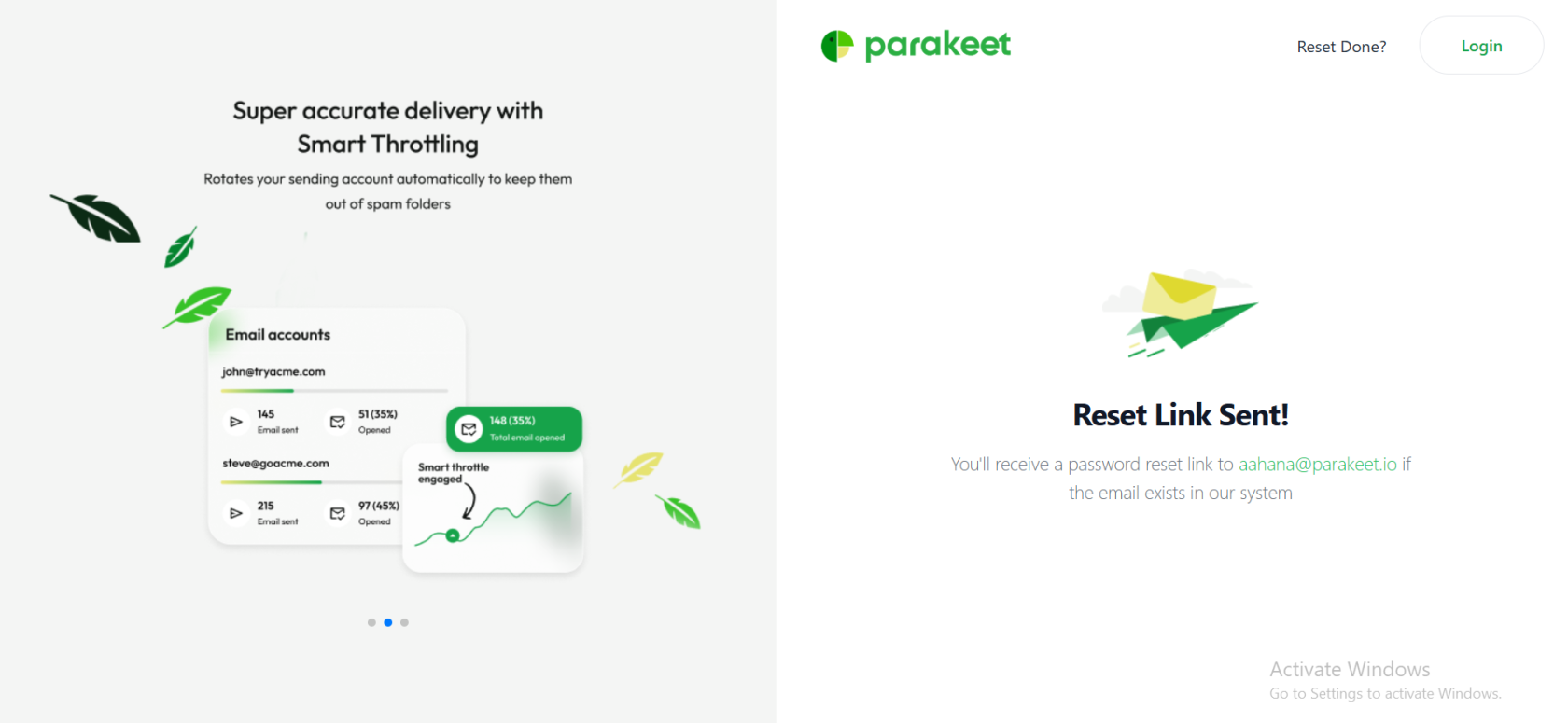
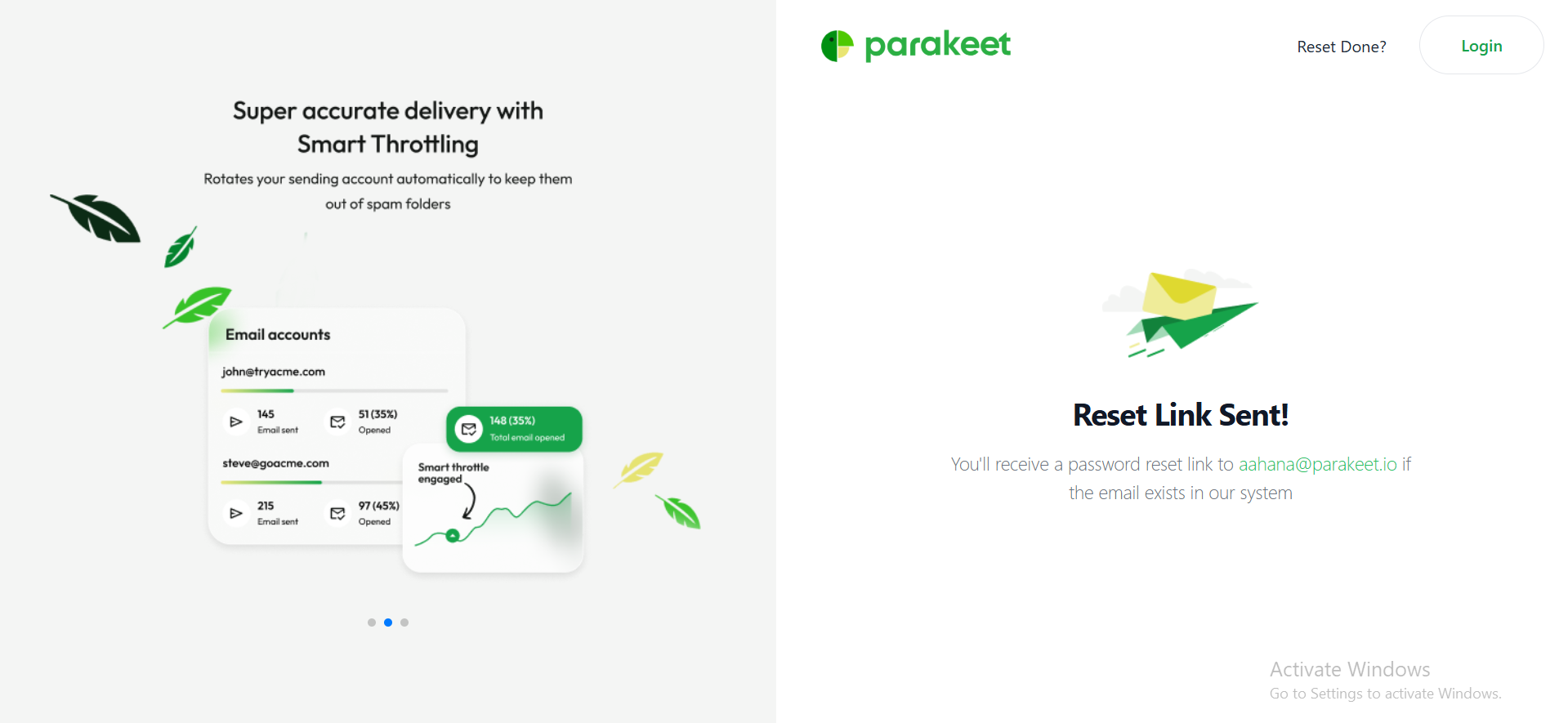
After submission, the button changes to indicate that a reset email has been sent.
-
Further inputs are disabled, and the user is instructed to check their email inbox.
-
-
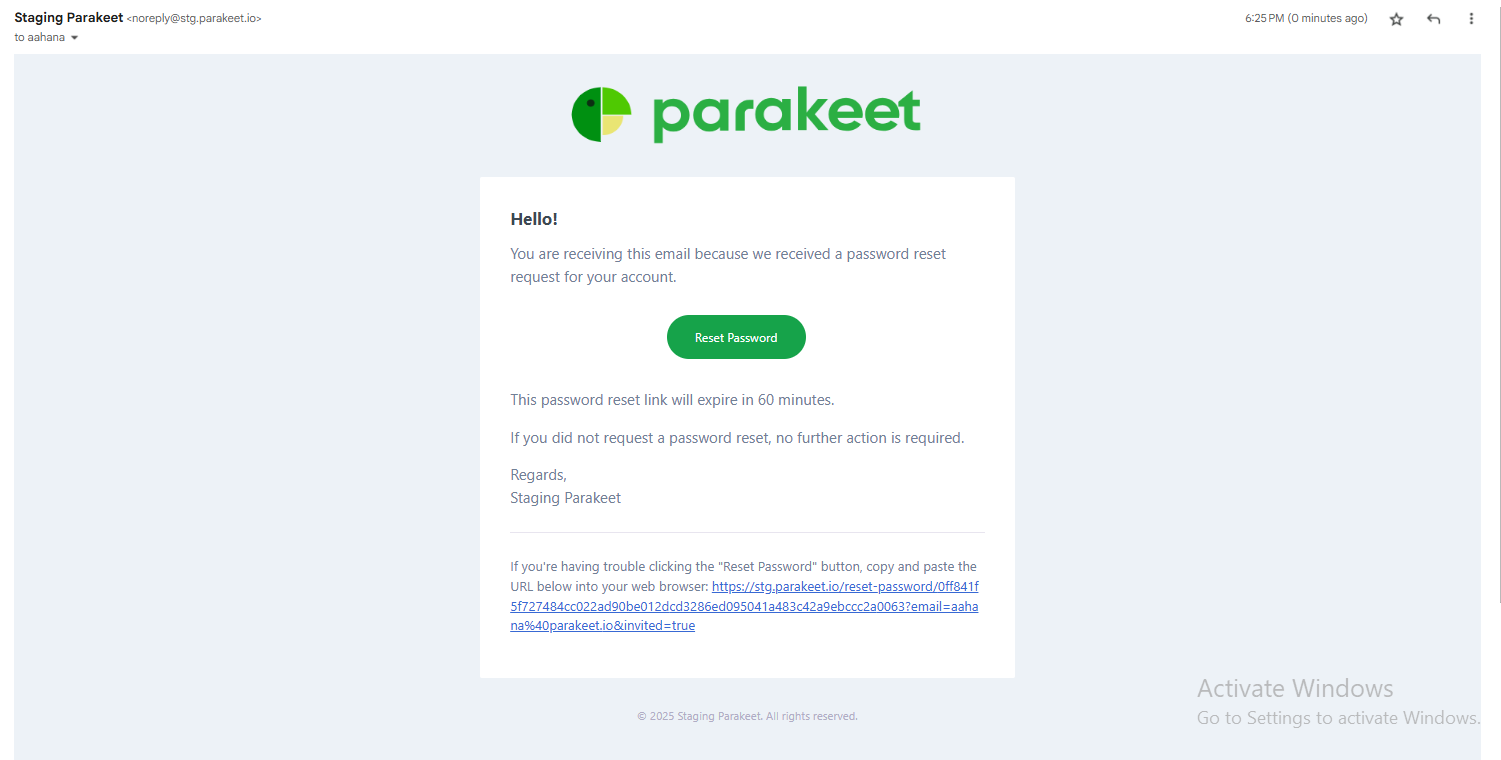
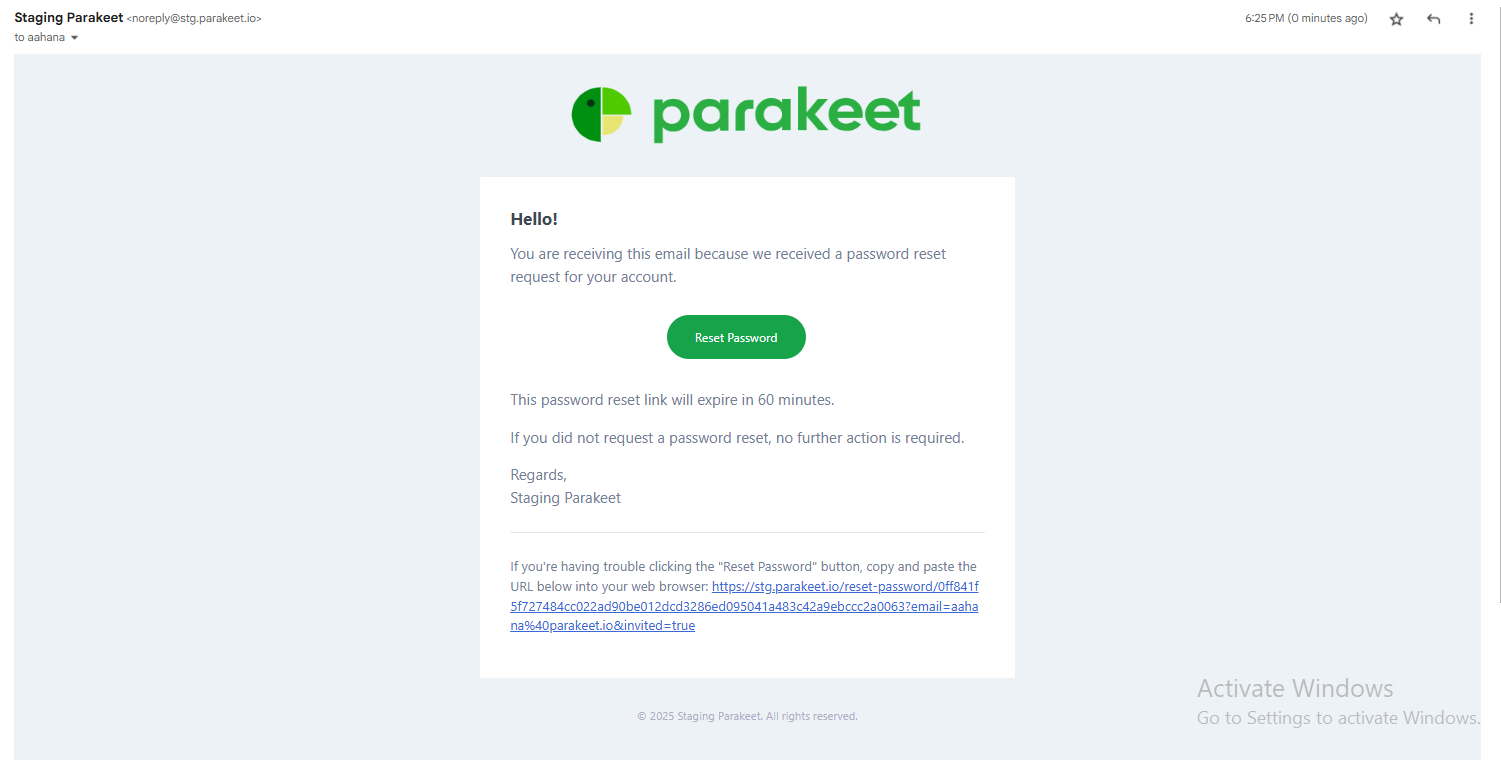
The user receives an email containing a password reset link.
-
Clicking the reset link redirects the user to the following route:
auth/forgot-password/{{user-specific-token}} -
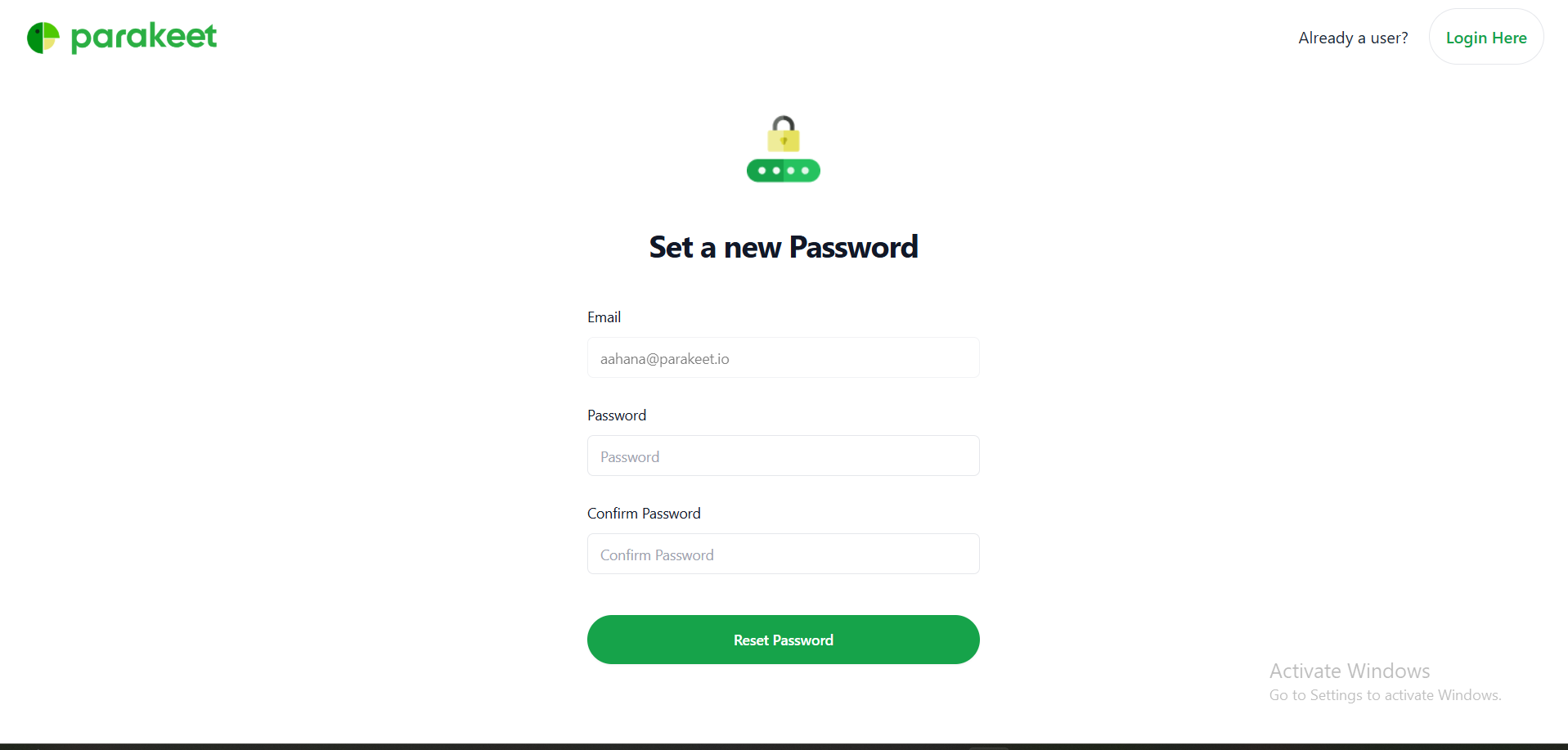
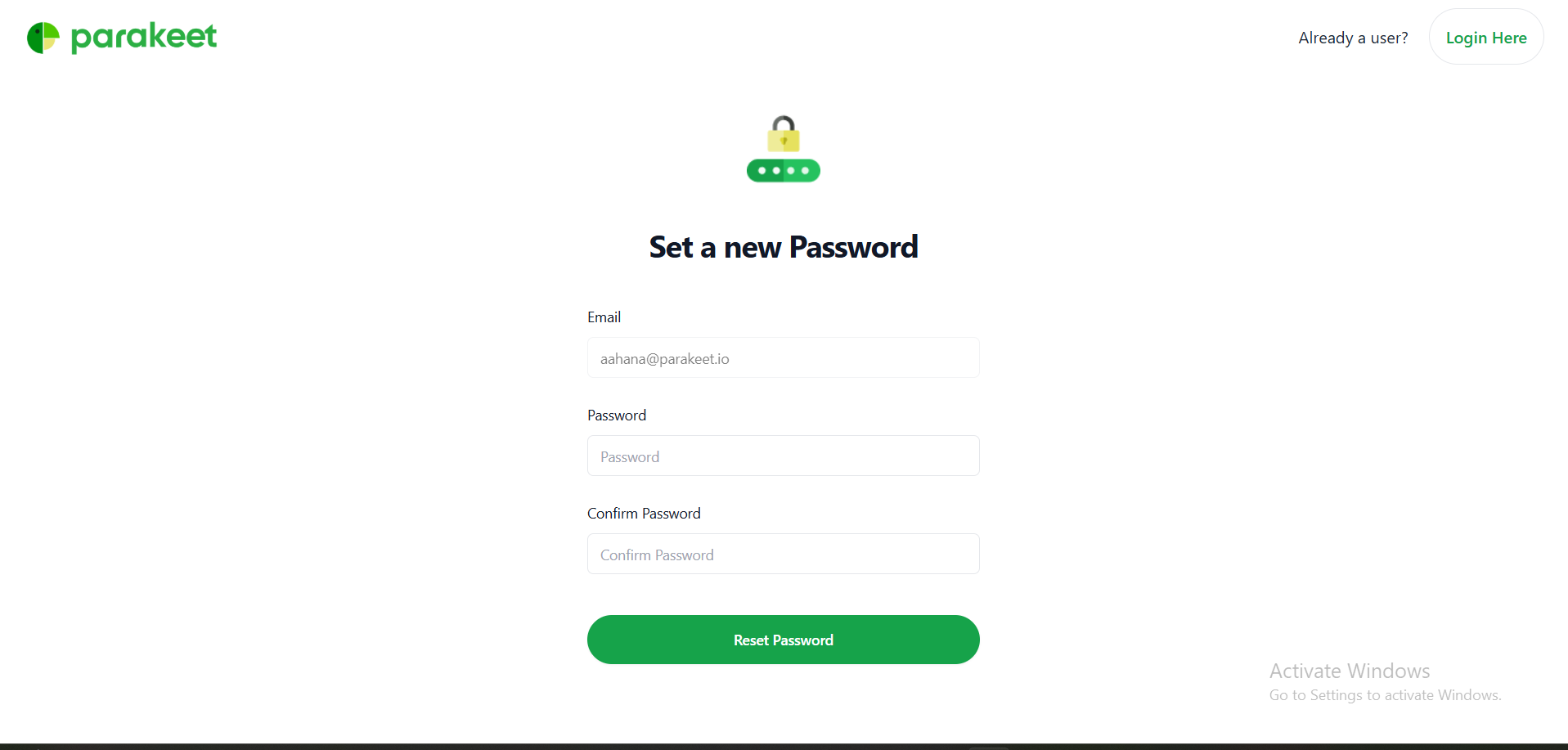
The Reset Password Page includes the following fields:
-
Email Address (pre-filled)
-
New Password
-
Confirm Password
-
-
Once the user clicks the "Reset Password" button:
-
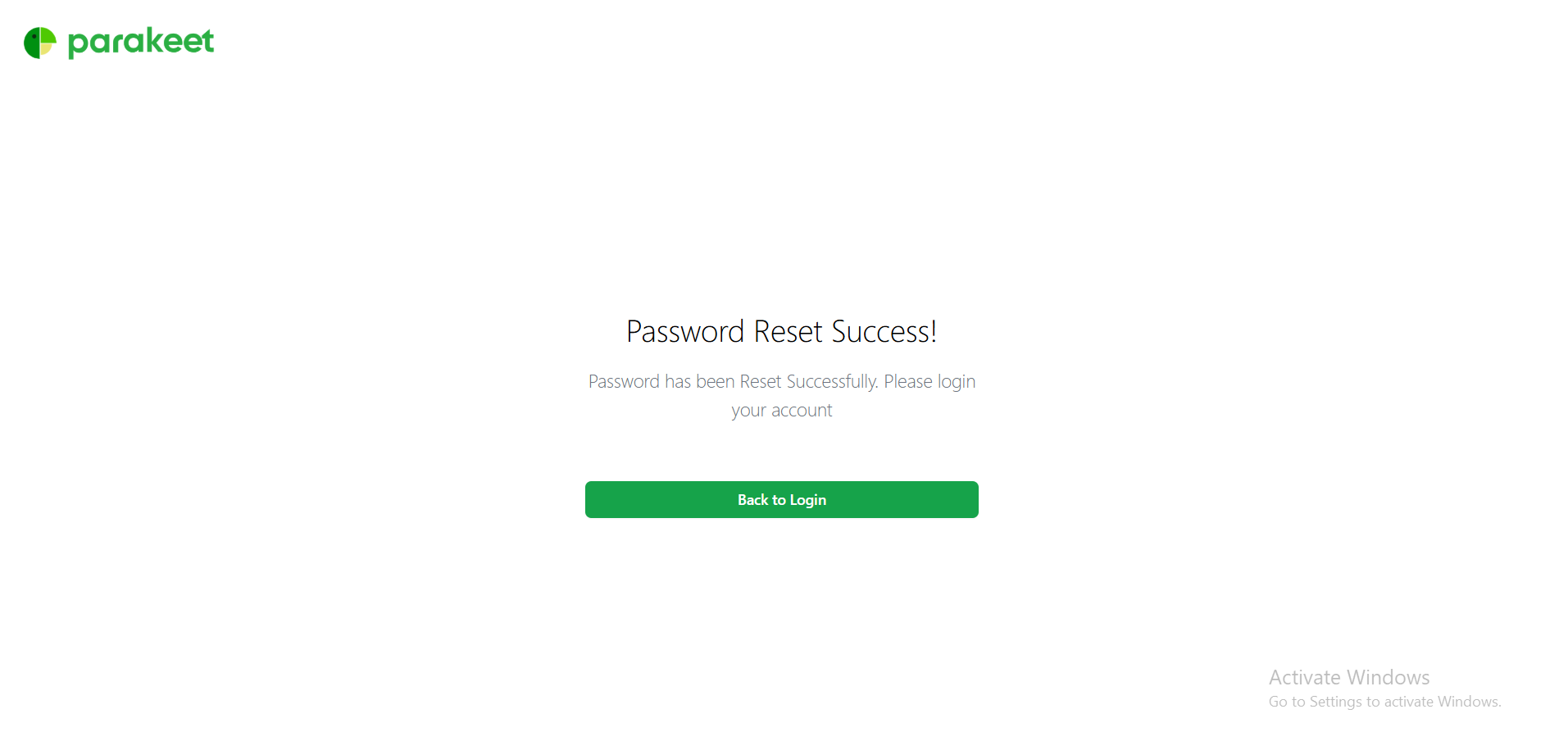
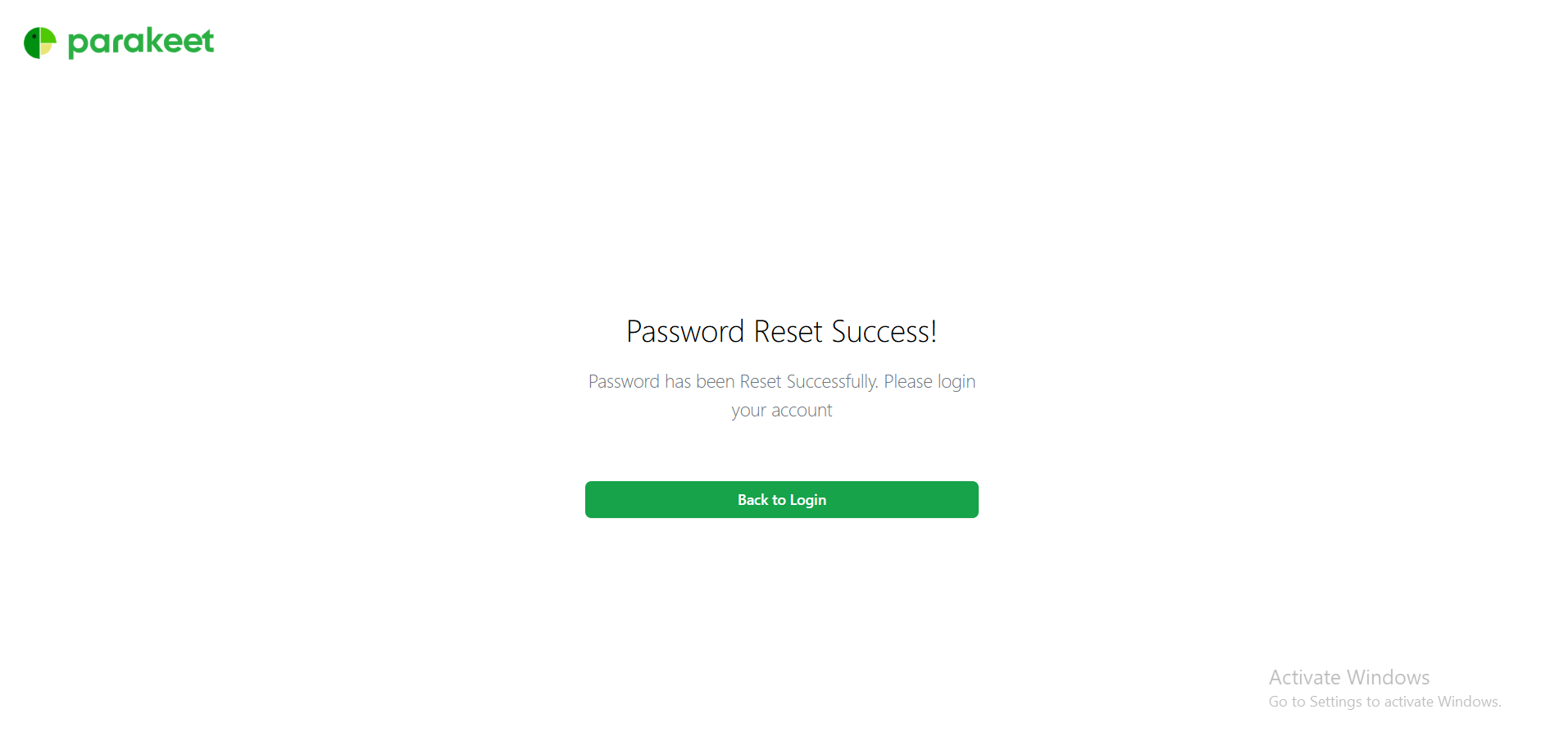
The system displays a message: "Password changed successfully."
-
The user is redirected back to the login page to authenticate using their new credentials.
-
No comments to display
No comments to display